

Paying your rent online
Guide published:
This guide shows how to pay an invoice in Autorentic. It takes about five minutes.
Prefer to watch first? This 20-second video shows the same screens, with no sound.
FPX online banking is always offered. Your property manager chooses which other methods to turn on, so you may also see card payments, DuitNow, e-wallets (Touch ’n Go, Boost, ShopeePay, GrabPay), Alipay or WeChat Pay.
Payments go through 2C2P, Autorentic’s payment partner. When you click Pay, you leave Autorentic for a 2C2P page to finish with your bank, card or e-wallet, then come back.
You can reach the payment page in two ways: click Pay Now in your invoice email, or sign in and open the invoice. Both lead to the same page.
Signing in and finding your invoice
Section titled “Signing in and finding your invoice”- Go to app.autorentic.com.
- Sign in with your email and password.
- Click Invoices under Money.
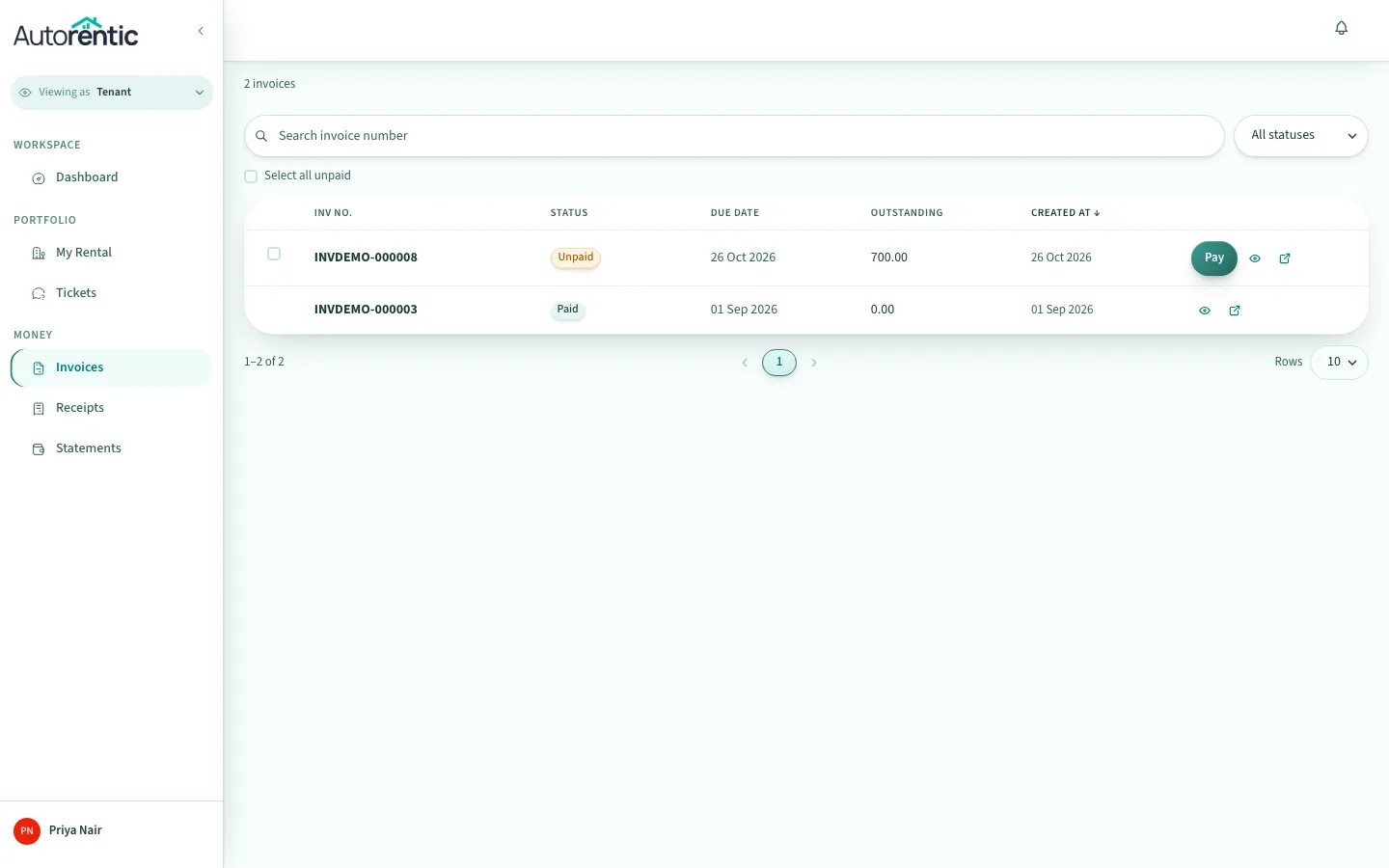
Each invoice shows its number, status, due date and Outstanding amount, which is what you still owe. An invoice marked Unpaid is waiting for payment.
Opening the invoice
Section titled “Opening the invoice”- Click the eye icon on the invoice row.
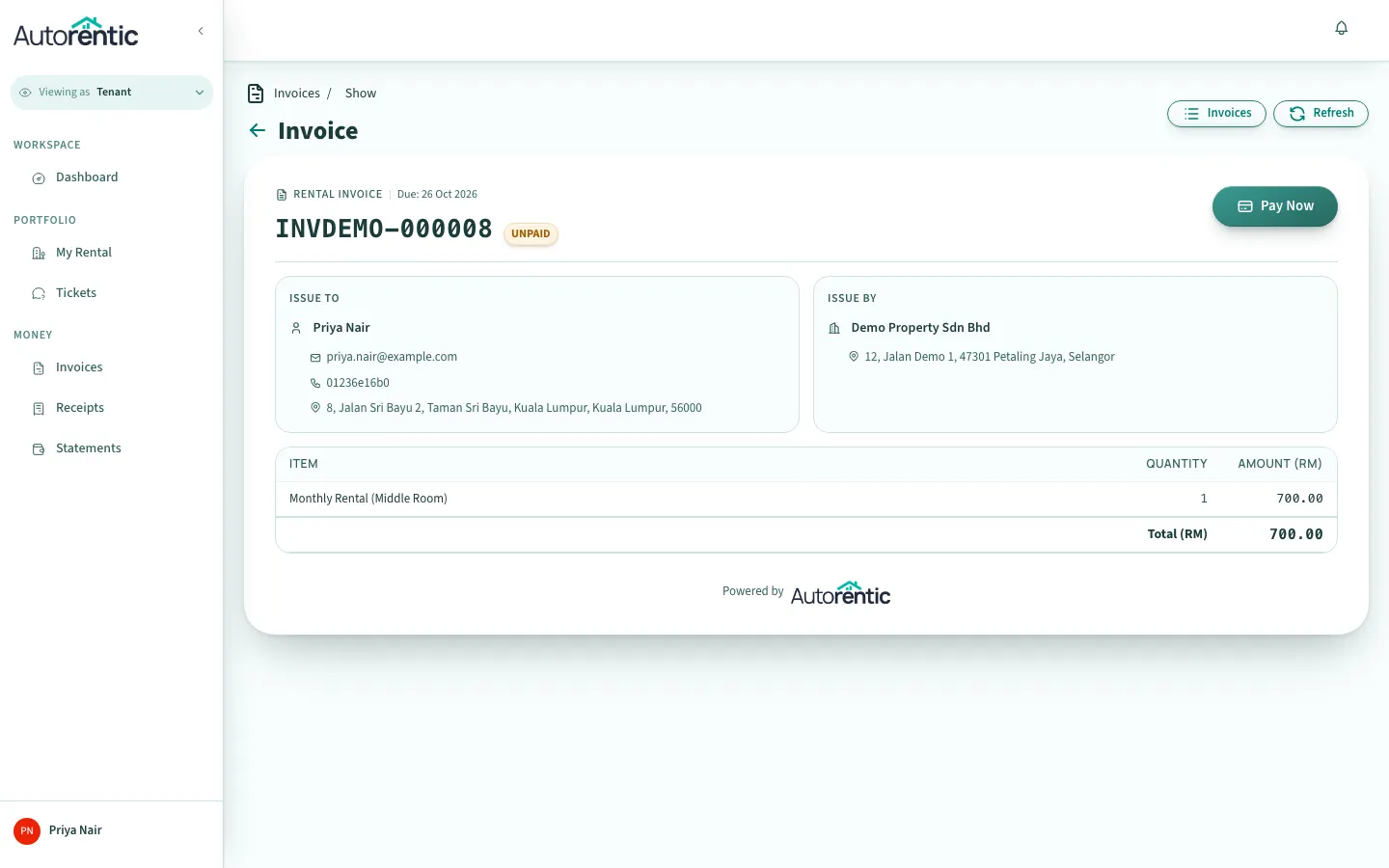
The invoice lists what you are being charged for and the total. While the invoice is unpaid, Pay Now appears at the top right. Once it is paid, the button goes.
Choosing a payment method and paying
Section titled “Choosing a payment method and paying”- Click Pay Now.
The payment page opens with the question How would you like to pay?. Each method has a short description under its name, for example FPX (B2C) for a personal bank account and Credit / Debit Card (Local) for a card issued in Malaysia. The list continues below the part of the page shown here.
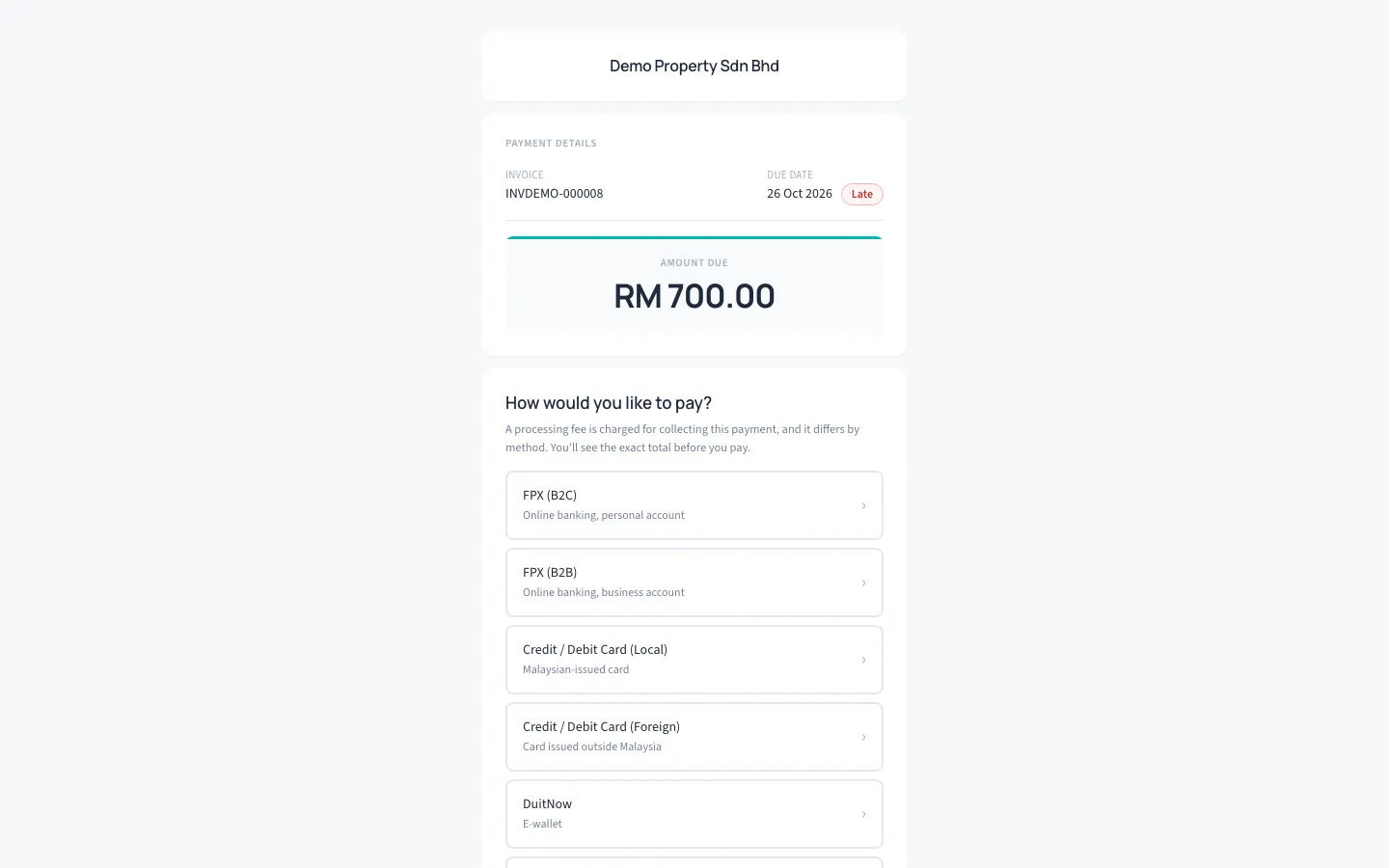
- Click the payment method you want to use.
The page now shows the amount you will pay. When a processing fee applies, it appears as its own line:
- Invoice amount is the rent owed.
- Processing fee is the charge for collecting this payment. Its percentage is shown in brackets. In the example, FPX (B2C) adds 1%.
- Total is what you will be charged.
The fee depends on the method, so the total changes when you choose a different one. To pick another method, click Change under Paying with.
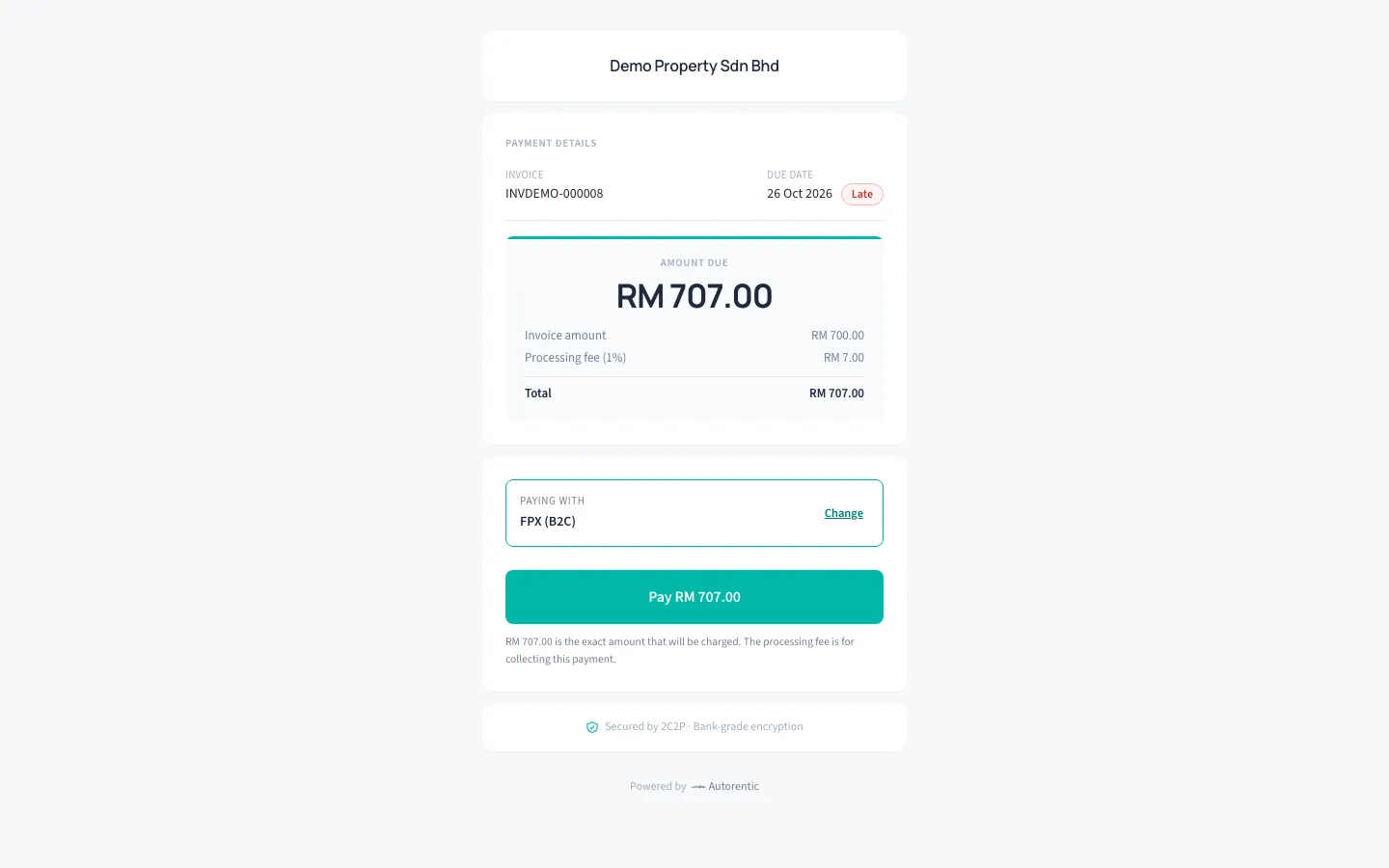
- Check that the amount on the Pay button is the total you expect.
- Click Pay.
The page shows Taking you to 2C2P with the amount, and asks you not to close the window. You are then taken to 2C2P, the secure payment provider, to finish with your bank or card. To go back before that happens, click Cancel and go back on that screen.
This guide does not show the 2C2P page itself, because it belongs to the payment provider.
After you pay
Section titled “After you pay”When 2C2P finishes, you come back to Autorentic and the page shows one of three results:
- Payment Successful: the invoice is now paid. A receipt is created and emailed to you. You do not need to tell your property manager.
- Verifying Payment…: Autorentic is still waiting for your bank to confirm. Leave the page open for a few seconds.
- Payment Failed: the payment did not go through and the invoice is still unpaid. You can try again with the same or another method.
If you were charged but the invoice still shows unpaid after a few minutes, send your property manager the invoice number, the amount, the payment method and the time you paid.
Finding your receipt
Section titled “Finding your receipt”- Click Receipts under Money.
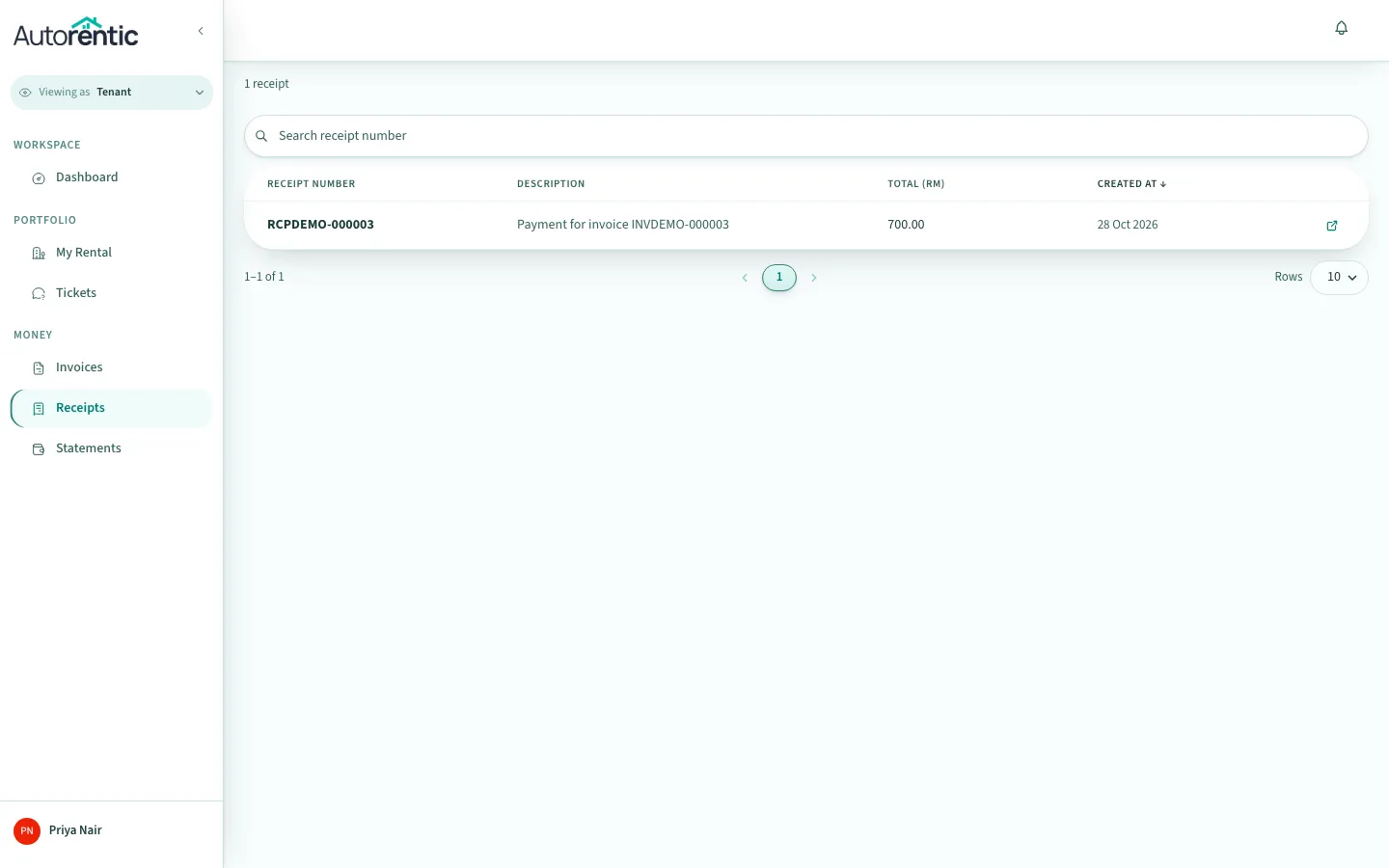
Your receipts are listed here. Until a payment is recorded against your account, the page shows No receipts yet. Once a payment is recorded, the invoice also shows a Receipt link.
If payment fails or the invoice still shows unpaid
Section titled “If payment fails or the invoice still shows unpaid”The page says Payment Failed. The page gives the reason the payment could not be processed. Go back to the payment page and choose a different method.
The payment page shows a red notice that your last attempt did not go through. The notice names the method that failed and the reason. Choose another method below it.
The page says Verifying Payment or Processing. Leave the page open for a few seconds while it checks with your bank.
The invoice still shows Unpaid after you paid. Open the invoice and click Refresh at the top right. Confirmation can take a short while.
The page says Payment Pending, or that the payment is still being confirmed. The page has stopped checking, and you can close it: the payment is still processed. If you have already been charged and the invoice still shows Unpaid after a few minutes, click Contact Support on that page, or tell your property manager, with the invoice number and the time you paid.
What to do next
Section titled “What to do next”- Find your receipts and your statement of account in Your receipts and statement of account.
- If you paid your property manager in cash or by bank transfer, they record it themselves, and a receipt appears in Receipts once they do.
- If a bill is still unpaid after the grace period your property manager set, a Penalty Fee line can be added to it. Ask your property manager how their late fee works.
- If the amount on an invoice is not what you expected, ask your property manager before you pay.
Ready to try it?
Go back to Autorentic and do it now, while the steps are fresh.