

Recording property expenses
Guide published:
Use this guide to record what a property costs you, such as maintenance, utilities, insurance or quit rent (cukai tanah). Autorentic shows the expenses beside the rent the property earned, so you can see what it really made. It takes about five minutes.
Prefer to watch first? This 35-second video shows the same screens, with no sound.
Opening Income & Expenses
Section titled “Opening Income & Expenses”- Click Properties in the sidebar.
- Click Income & Expenses under it.
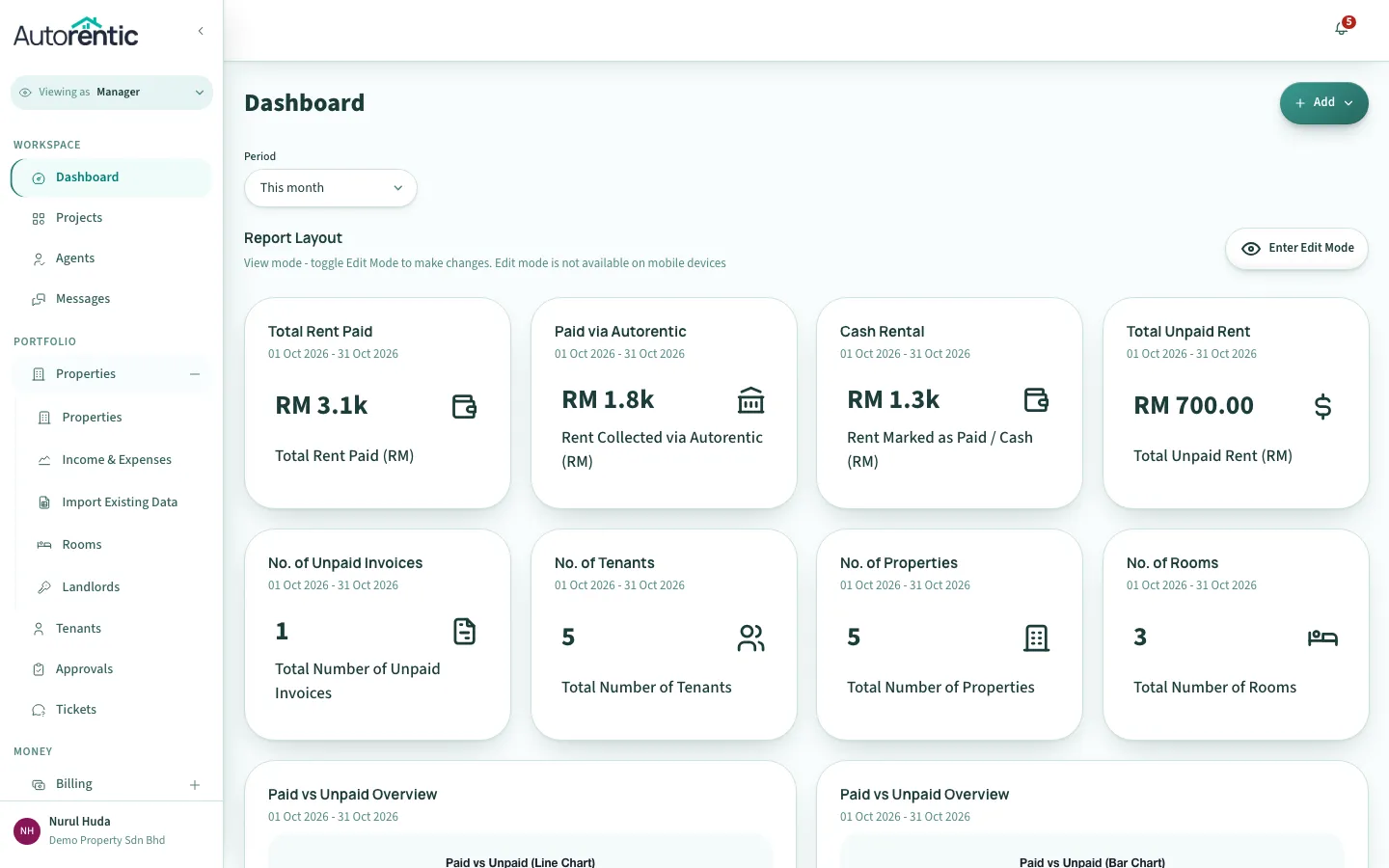
- Choose a property in the box at the top right.
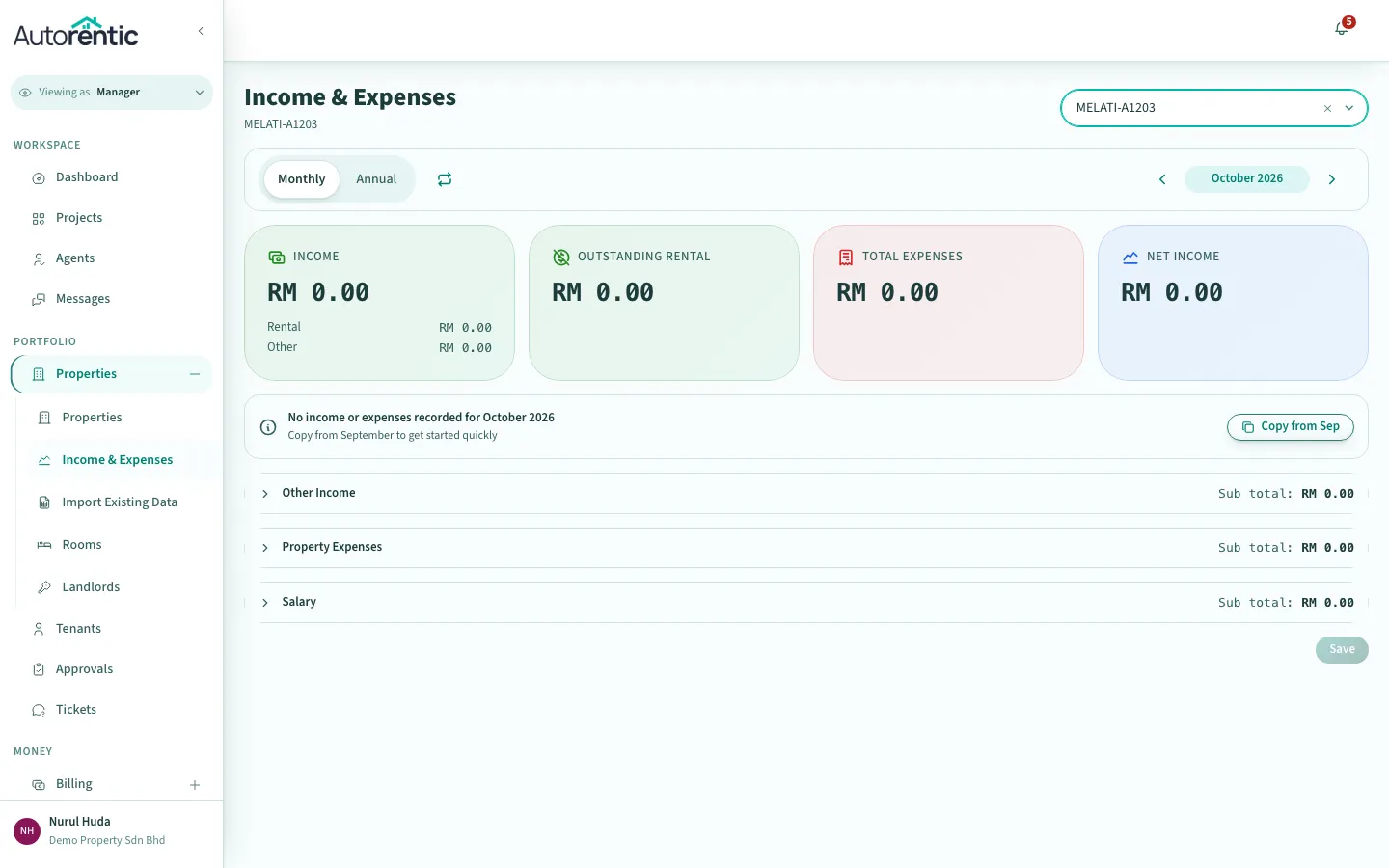
The page opens on the current month. The four boxes at the top show the month’s Income, Outstanding Rental, Total Expenses and Net Income. Use the arrows beside the month to move to another month.
Adding an expense
Section titled “Adding an expense”- Click Property Expenses to open the list.
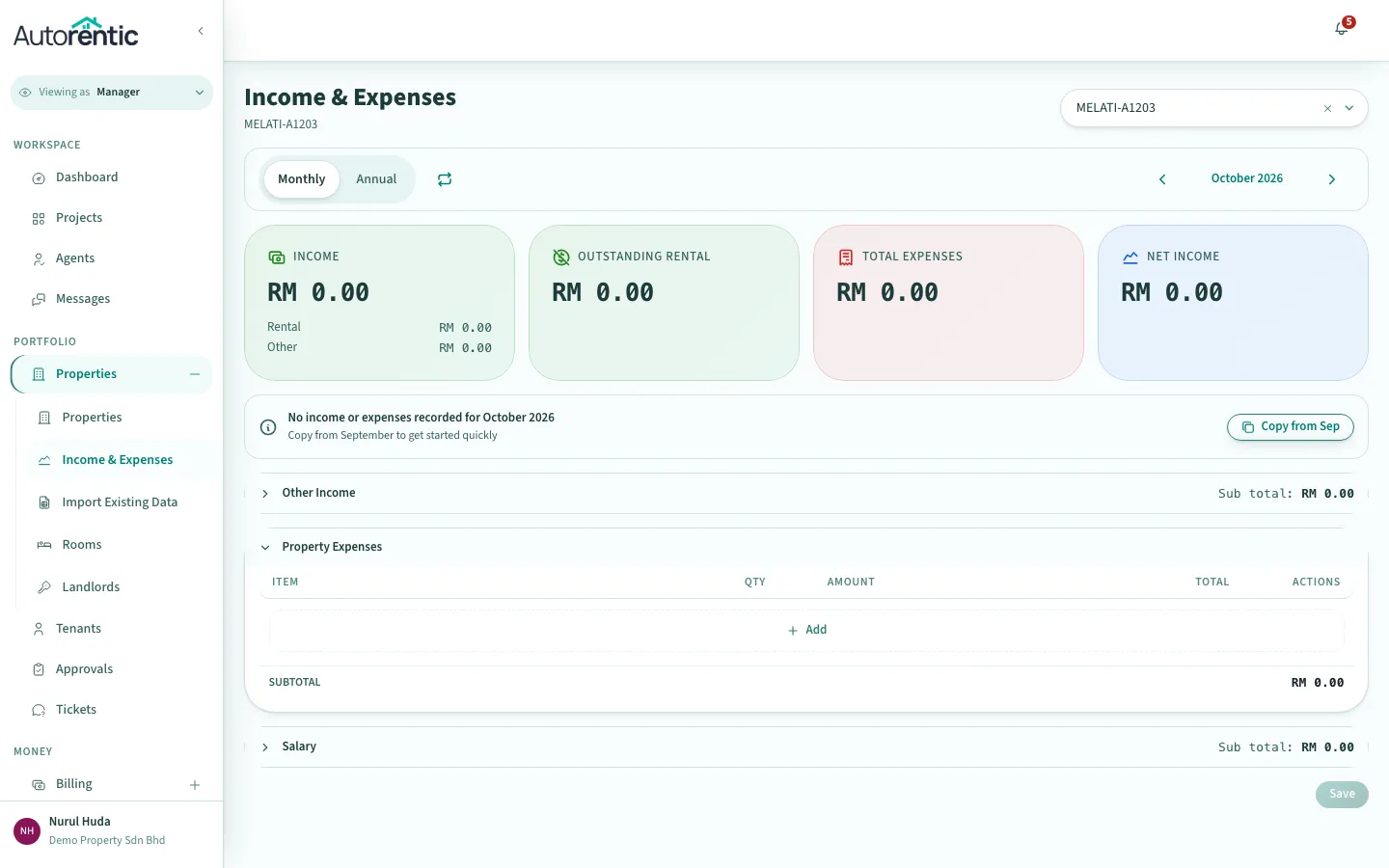
- Click Add. A new line appears.
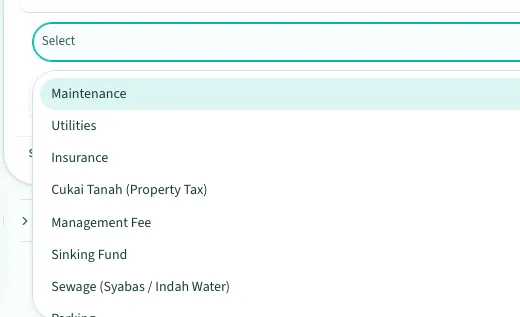
- Click Select and choose the kind of expense.
- Type the amount in RM. Change the quantity only if you paid for more than one of the same thing.
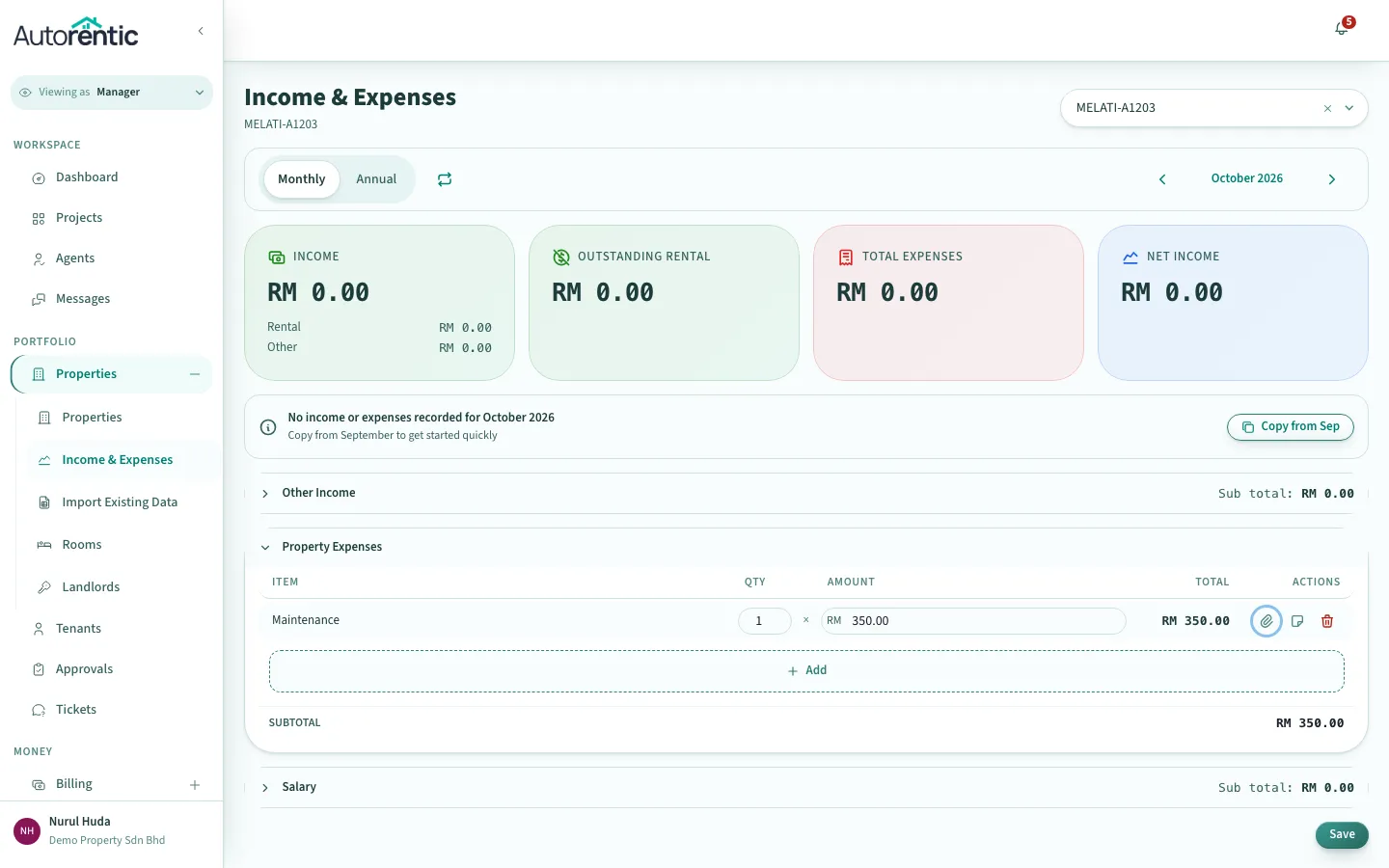
- Click Save at the bottom right.
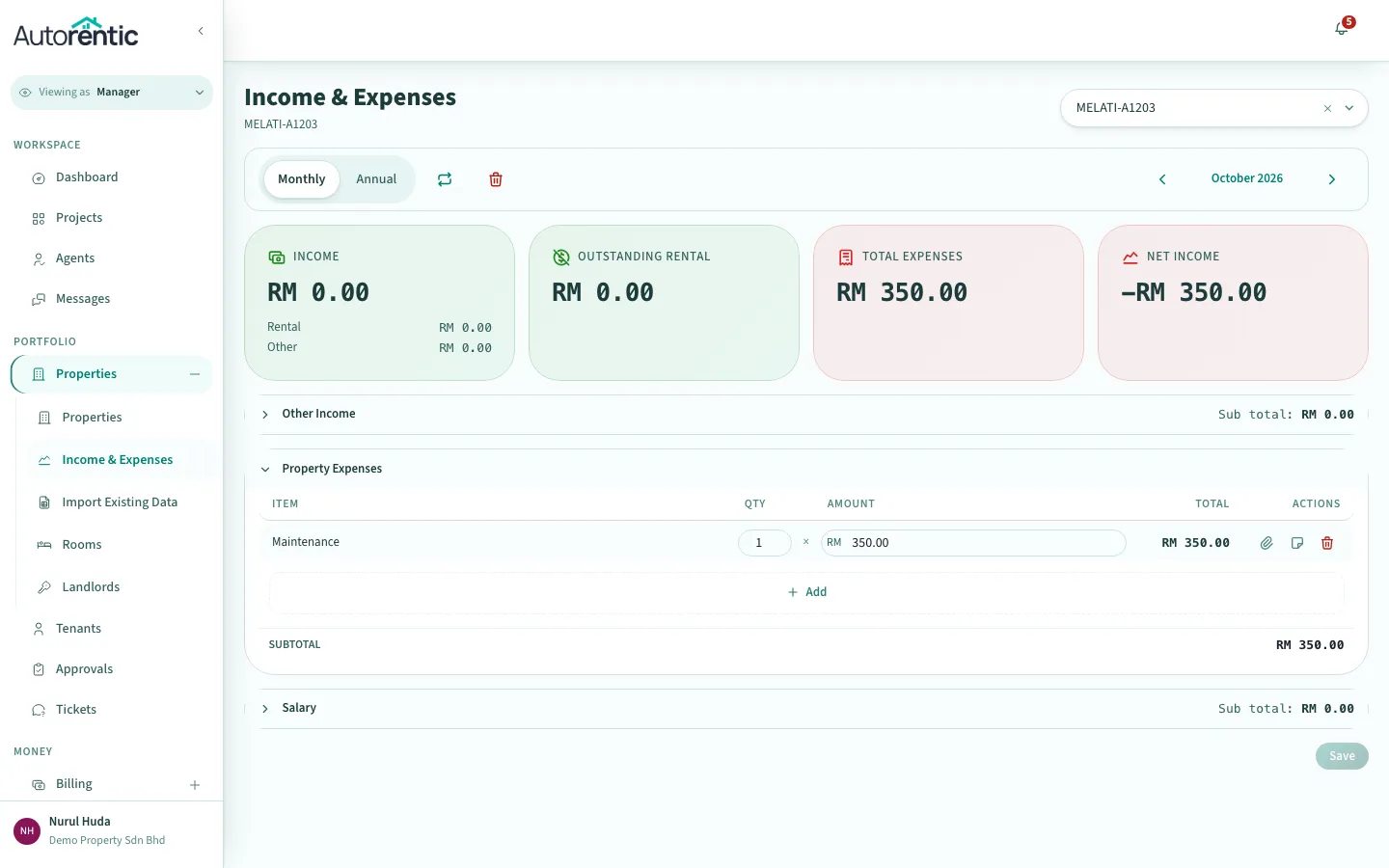
Total Expenses and Net Income update straight away.
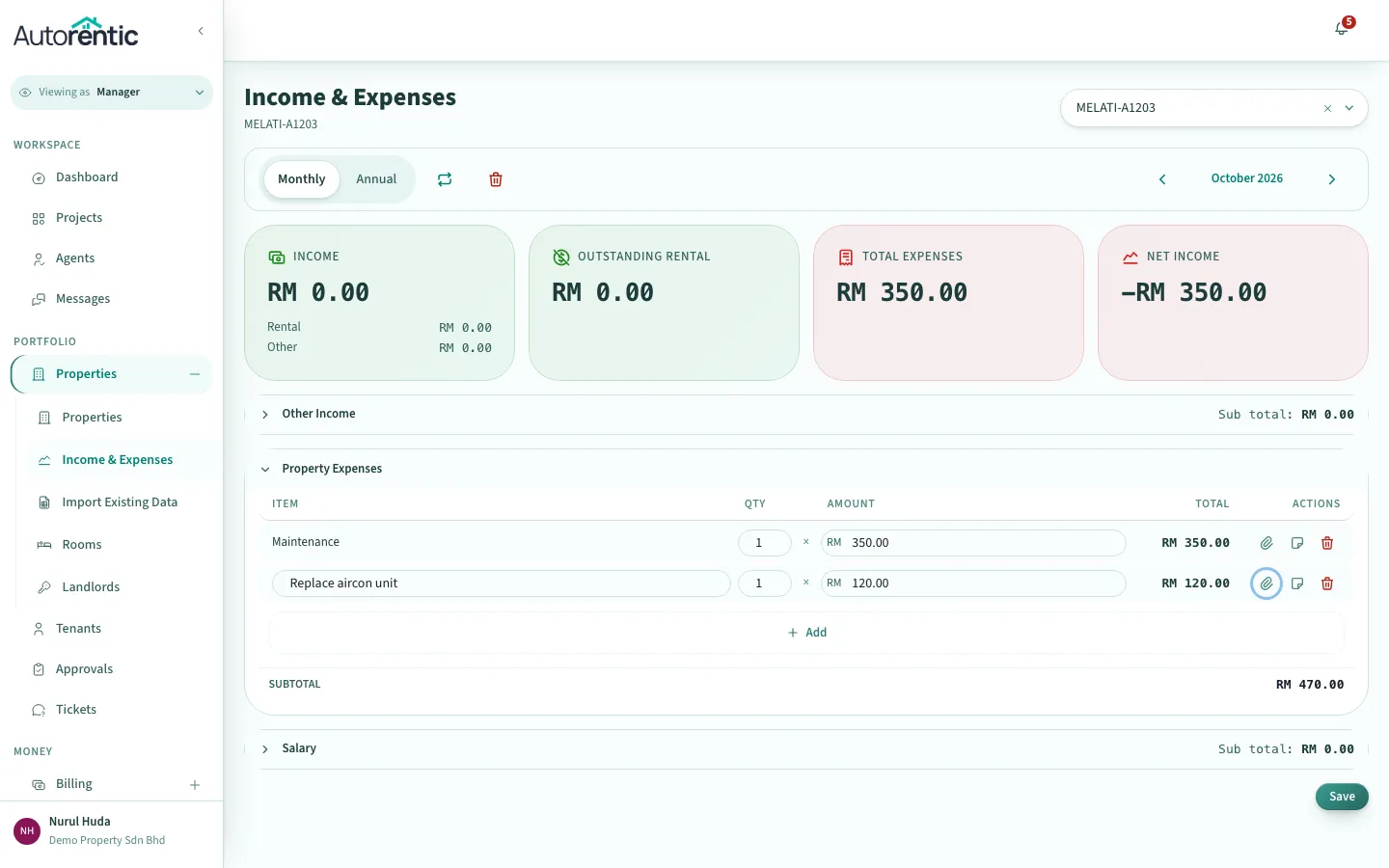
If the kind of expense is not in the list, choose Other (free text) and type a short description in its place, such as “Replace aircon unit”.
Attaching a receipt
Section titled “Attaching a receipt”- On the expense line, click the paperclip icon under Actions.
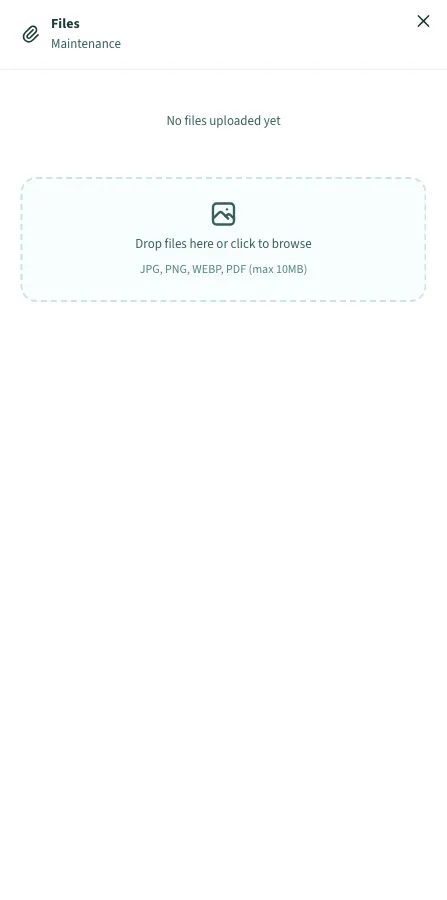
- Drag the receipt into the box, or click it to choose a file. Photos (JPG, PNG, WEBP) and PDFs up to 10 MB are accepted.
- Close the panel with the X at the top right.
Reading the month and the year
Section titled “Reading the month and the year”After saving, the month shows every expense line with its total, and the subtotal under the list.
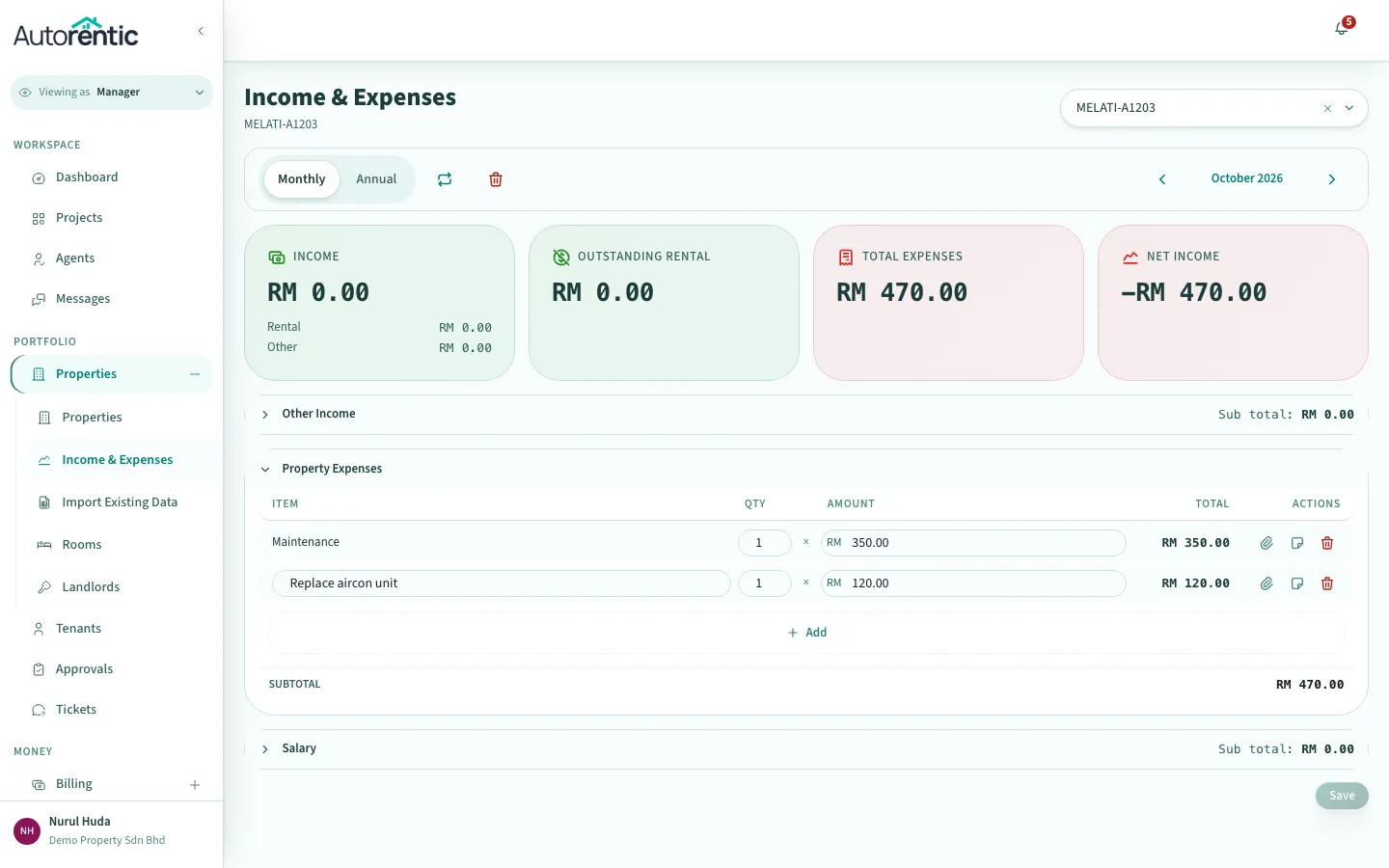
A negative Net Income means the property cost more than it earned that month.
To see the whole year:
- Click Annual at the top left.
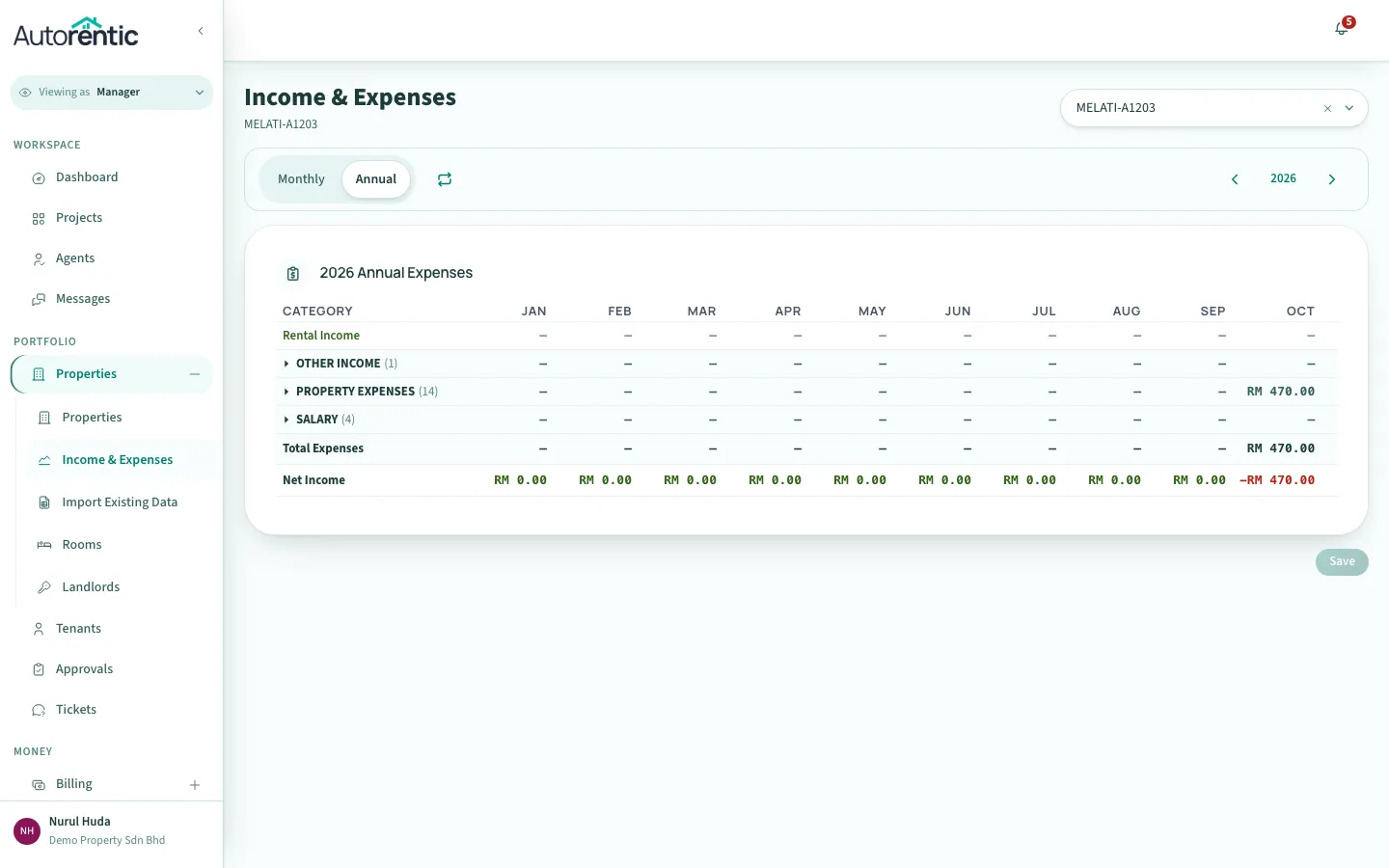
Each row is a kind of income or expense, and each column is a month. The Net Income row at the bottom is income minus expenses for each month. Click Monthly to go back.
Saving time next month
Section titled “Saving time next month”When a month has nothing recorded yet, the page offers Copy from the previous month. Click it to copy last month’s lines, then change only the amounts that are different.
What to do next
Section titled “What to do next”- If an amount is wrong, change it on its line and click Save again.
- To remove a line, click the red bin icon under Actions, then click Save.
- For rent collected and paid out to you, read Checking your income and payouts.
Ready to try it?
Go back to Autorentic and do it now, while the steps are fresh.