

Checking your income and payouts
Guide published:
This guide shows where to see the rent you have collected and the money Autorentic has sent to your bank account. It takes about five minutes. These screens only show figures. Nothing on them changes when you read them.
Prefer to watch first? This 20-second video shows the same screens, with no sound.
Opening the Finances menu
Section titled “Opening the Finances menu”- Click Finances under Money in the menu on the left.
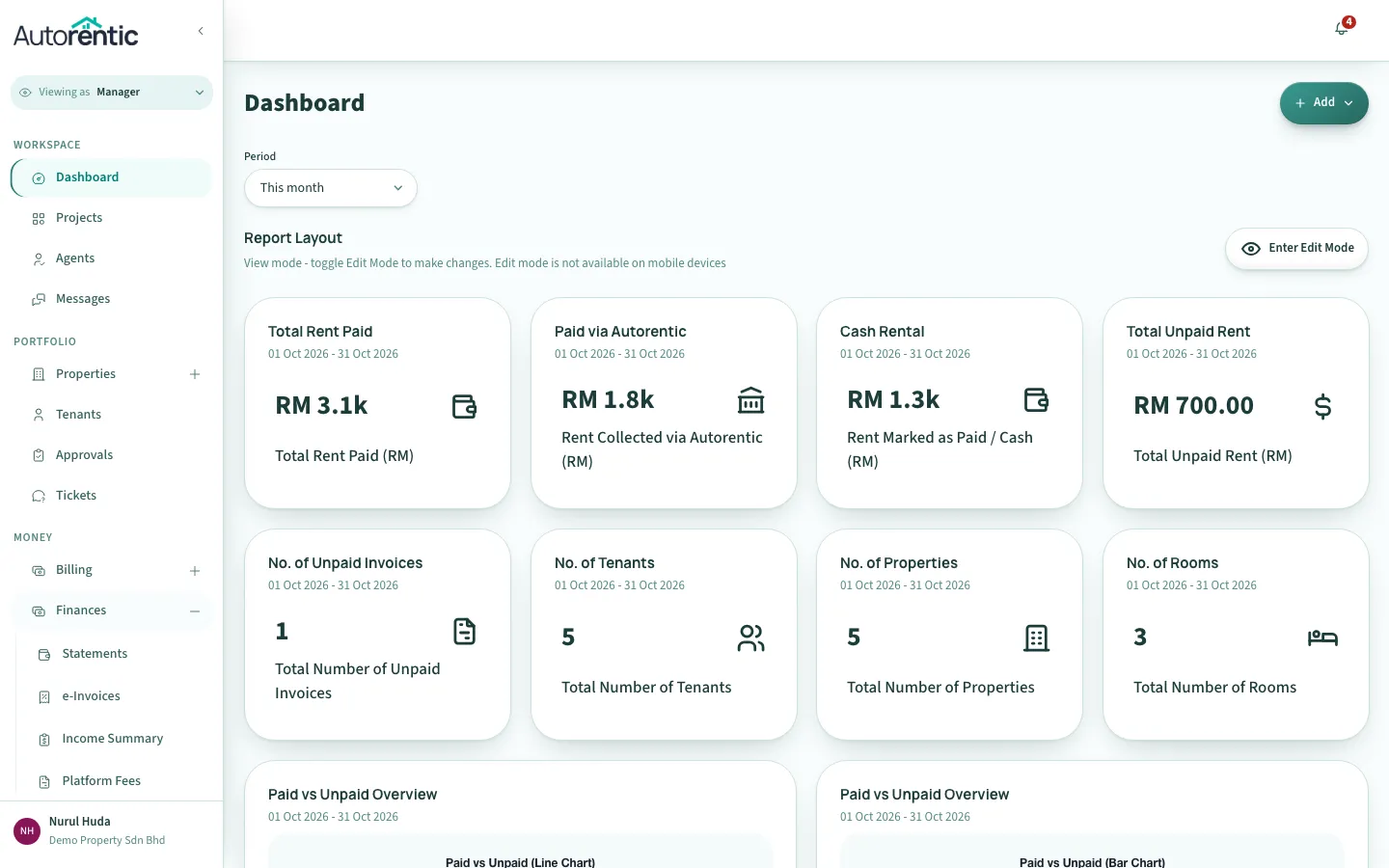
The menu opens and shows its pages. This guide uses Income Summary and Payouts.
Reading your Income Summary
Section titled “Reading your Income Summary”- Click Income Summary in the Finances menu.
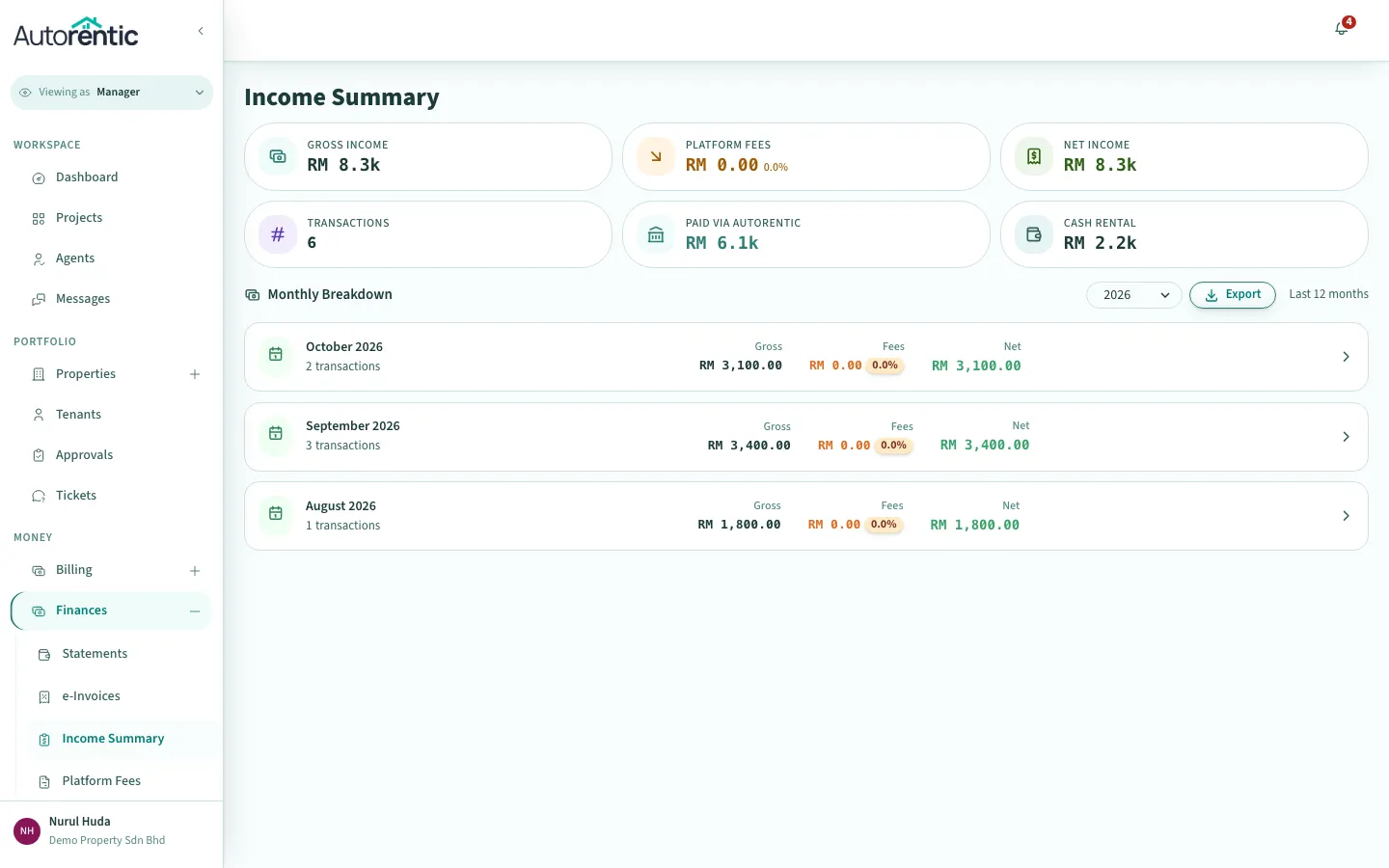
The cards at the top add up all of your income. The Monthly Breakdown list below them shows each month of the last 12 months. Each card means:
- Gross Income: all the rent tenants have paid you that was recorded as received, whether through Autorentic or by hand.
- Platform Fees: the fees Autorentic took from the payments made through Autorentic. A payment recorded by hand has no fee. The percentage beside the amount is the fees as a share of Gross Income.
- Net Income: Gross Income minus Platform Fees. This is the amount you keep.
- Transactions: the number of rent payments counted.
- Paid via Autorentic: the part of Gross Income that tenants paid online through Autorentic.
- Cash Rental: the part of Gross Income you marked as paid by hand. Autorentic does not pay this out, so it never appears in a payout.
A card shows RM 0.00 if you have no payments of that kind.
Reading one month
Section titled “Reading one month”- Click the month you want, for example October 2026.
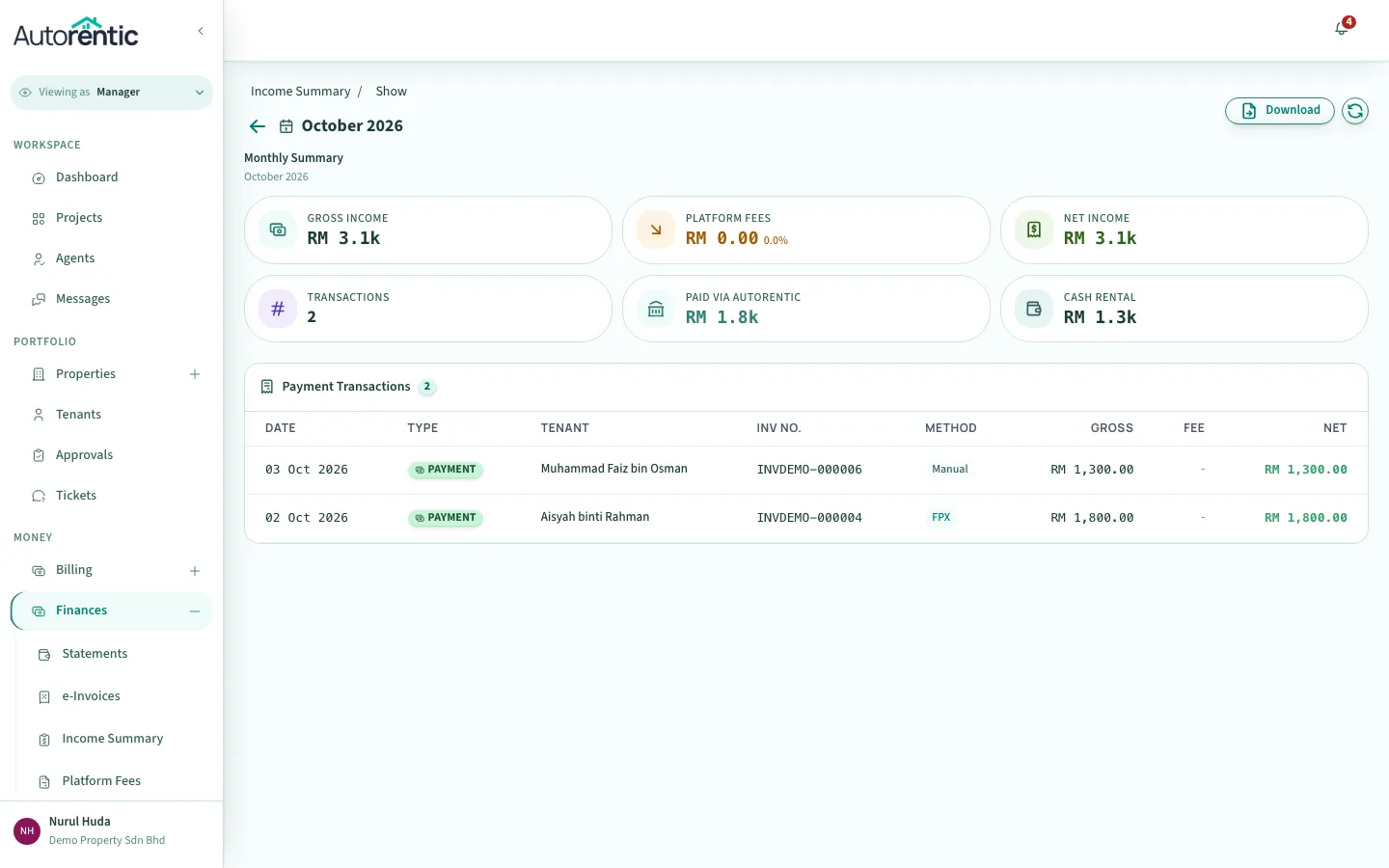
The month page shows the same cards for that month only. Under them, Payment Transactions lists each payment with its date, tenant, invoice number, Method, Gross, Fee and Net. A Manual label in Method means you recorded that payment by hand. It has no fee and is not paid out by Autorentic.
Checking a payout
Section titled “Checking a payout”- Click Payouts in the Finances menu.
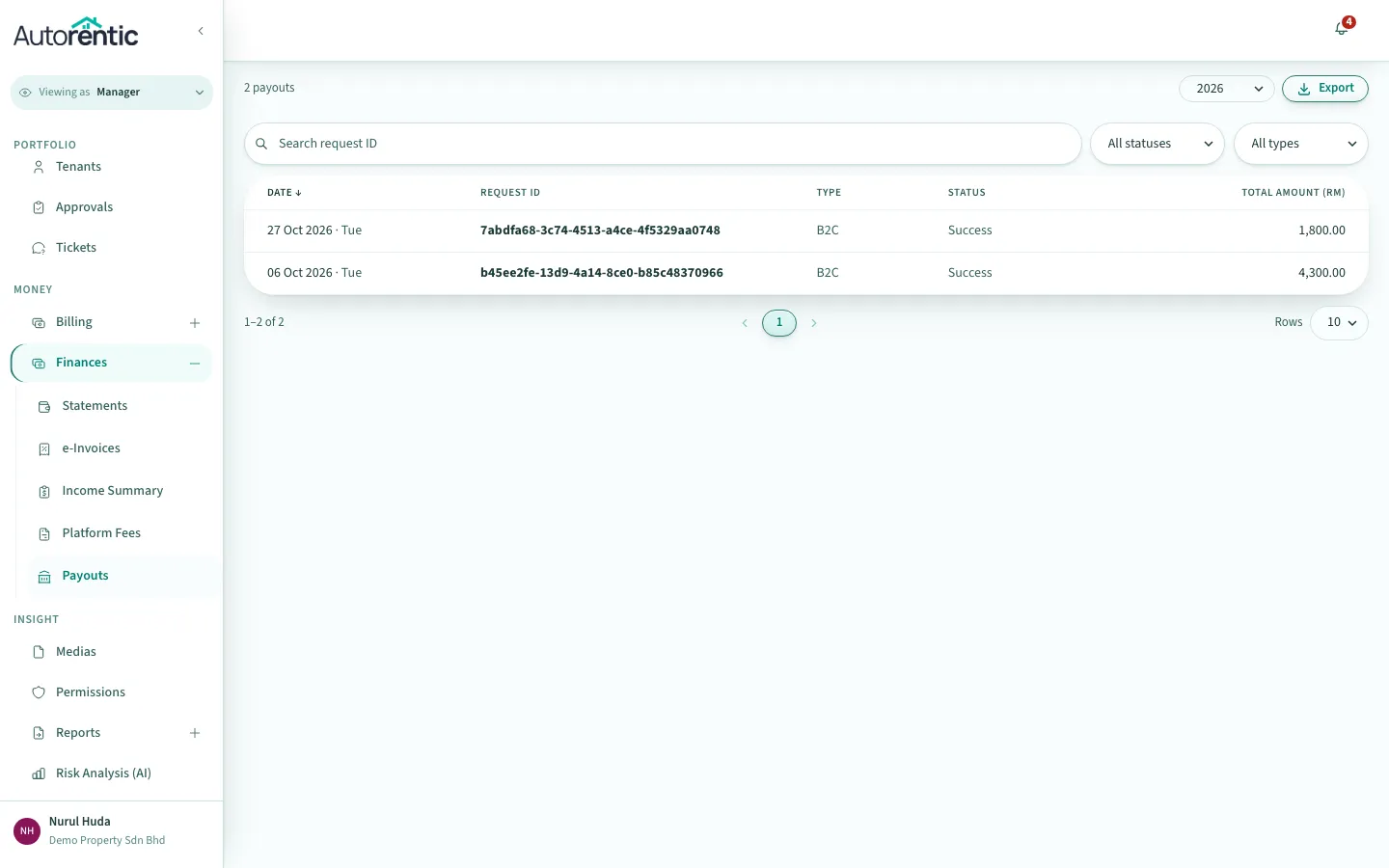
Each row is one transfer to your bank account. Total Amount (RM) is the amount sent to the bank, after fees. To find a payout, type its request ID in Search request ID, or use All statuses and All types. The status is Processing, Success or Failed.
- Click the row of the payout you want to open.
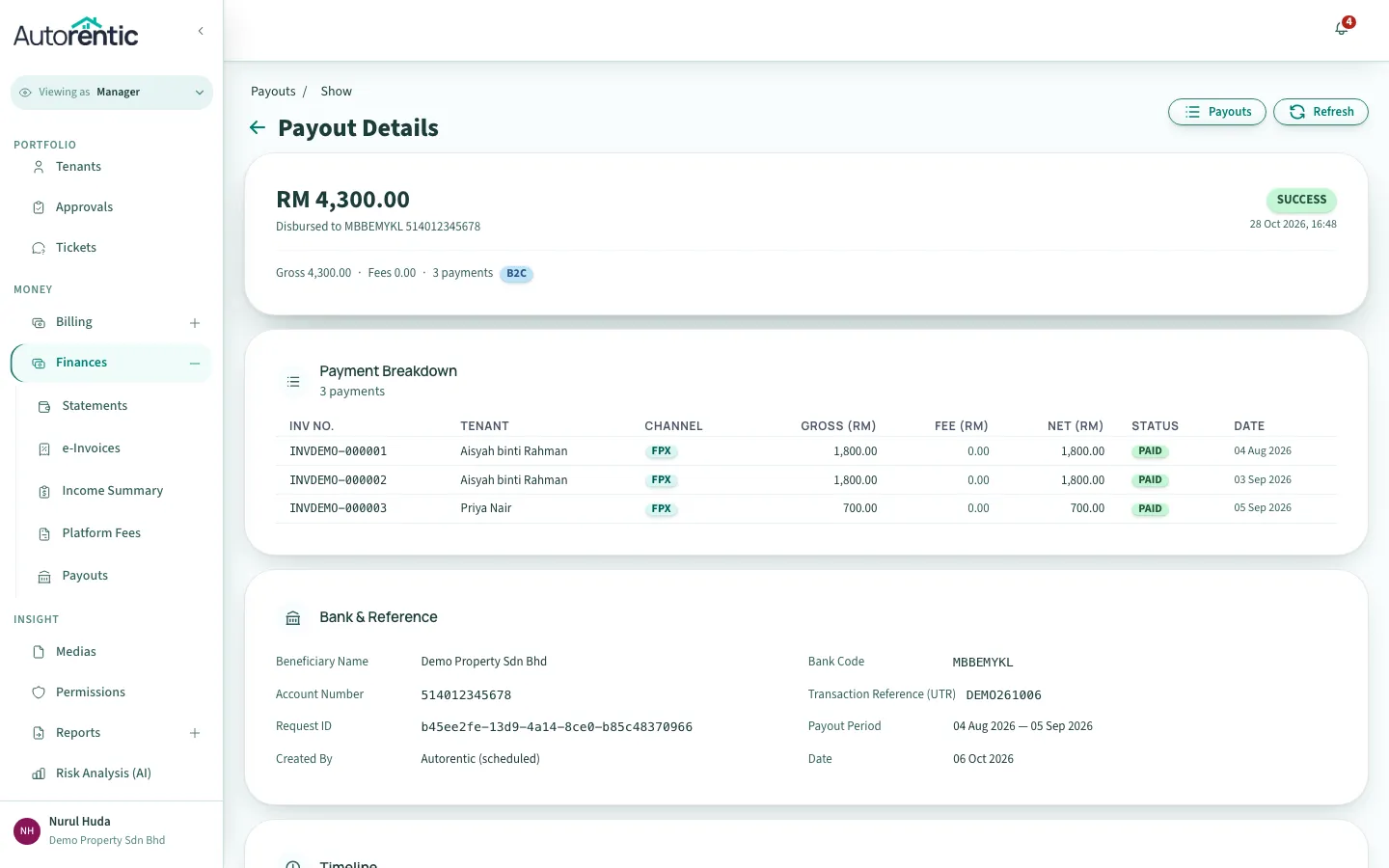
The payout page has four parts:
- The amount at the top is what was sent to the bank account shown under it, marked Disbursed to.
- The line under the amount shows the Gross (rent before fees), the Fees, and how many payments the payout includes.
- Payment Breakdown lists each payment in the payout: invoice number, tenant, channel, Gross (RM), Fee (RM) and Net (RM). The Net column adds up to the amount at the top.
- Bank & Reference shows the bank account, the transaction reference (UTR), the Payout Period (the dates whose payments are in this payout) and who created it. Autorentic (scheduled) means the system created it on its schedule.
Further down, Timeline shows each step of the transfer. If a transfer failed, its attempts and reasons are listed under Failed Attempts.
When a payout looks lower than the rent collected
Section titled “When a payout looks lower than the rent collected”A payout is always lower than Gross Income for the same period. These are the usual reasons:
- Fees come off first. Each payment’s Fee is taken before the transfer. Compare Gross (RM) with Net (RM) on the payout to see the fee for each payment.
- Rent you marked as paid by hand is not paid out. It counts in Gross Income and in the Cash Rental card, but it is not in any payout.
- Some rent has not been paid out yet. Autorentic pays out in batches, so a payment received late may go into the next payout. Check the Payout Period on each payout to see which dates it covers.
- A transfer can fail. A payout marked Failed did not reach your bank. Check its Timeline and Failed Attempts to see why.
- Income Summary and payouts count different things. Net Income includes hand-recorded rent, so it is higher than the total of your payouts over the same period.
What to do next
Section titled “What to do next”- If a payout is Failed, or stays Processing longer than you expect, email Autorentic at [email protected]. Give them the payout’s Request ID and its amount in RM, so they can find the transfer.
- If a tenant’s payment is missing from every payout, open Billing, then Invoices, to check whether the invoice is marked as paid.
- If some rent has not come in yet, read Chasing unpaid rent.
Ready to try it?
Go back to Autorentic and do it now, while the steps are fresh.