

Changing rent and extra charges
Guide published:
This guide continues from Setting up monthly rent billing. It shows how to change what a tenancy pays after its bills are set up.
Prefer to watch first? This 20-second video shows the same screens, with no sound.
Three things to know first:
- A change starts from a bill you pick. Bills already sent to the tenant do not change.
- Each tenancy keeps its own rent and charges. Changing the property’s rent does not change the tenancies that already exist.
- A draft invoice (the app also calls it a proforma) that has not been emailed yet is rebuilt with the new amount. Once it is emailed, it stays as it was.
Change the rent or a monthly charge for one tenancy
Section titled “Change the rent or a monthly charge for one tenancy”- Open the tenant from Tenants under Portfolio.
- Click the Billing tab.
- If the tenant has more than one tenancy, pick the one you want from the buttons at the top.
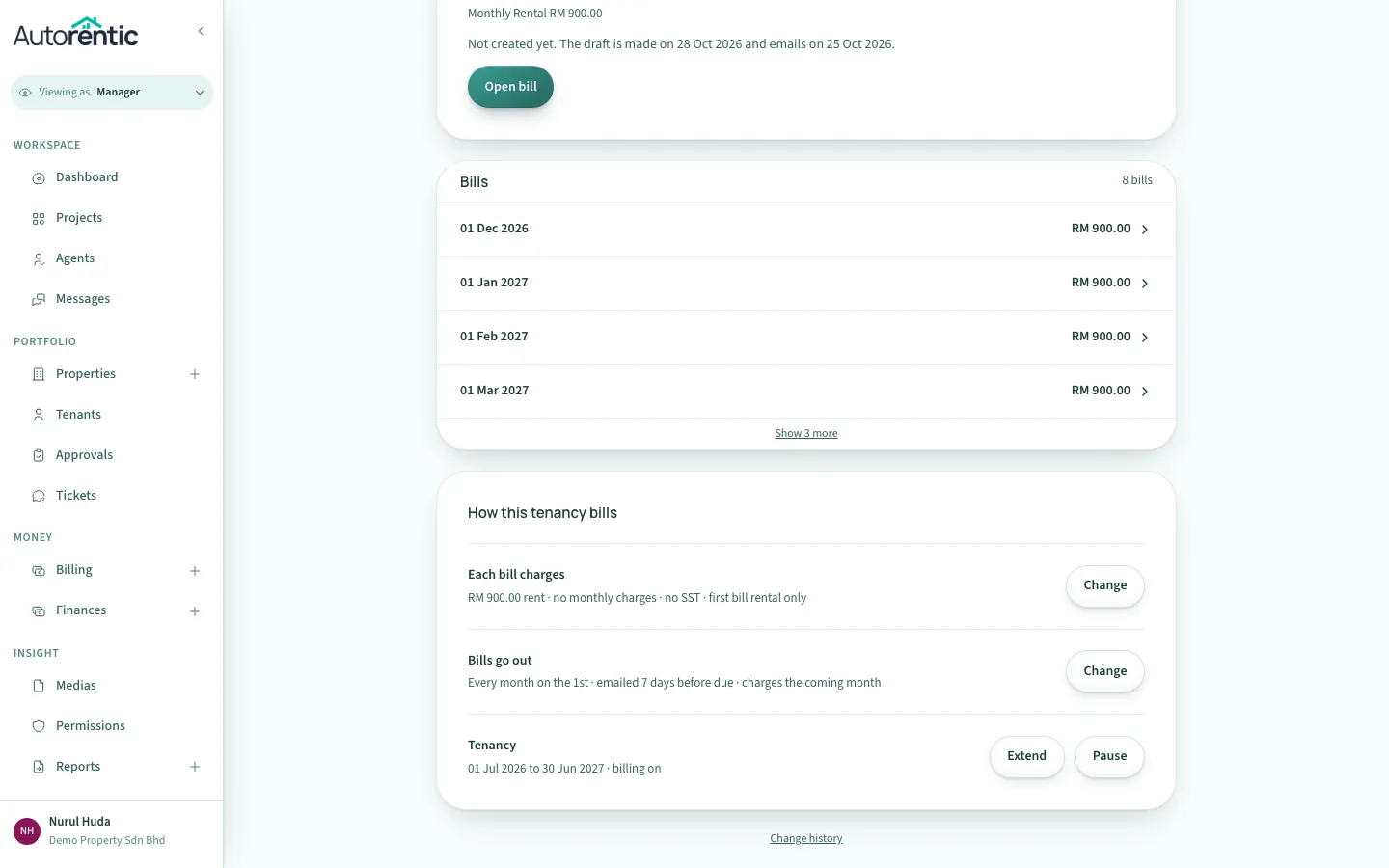
- Scroll to the card How this tenancy bills. Under Each bill charges, click Change.
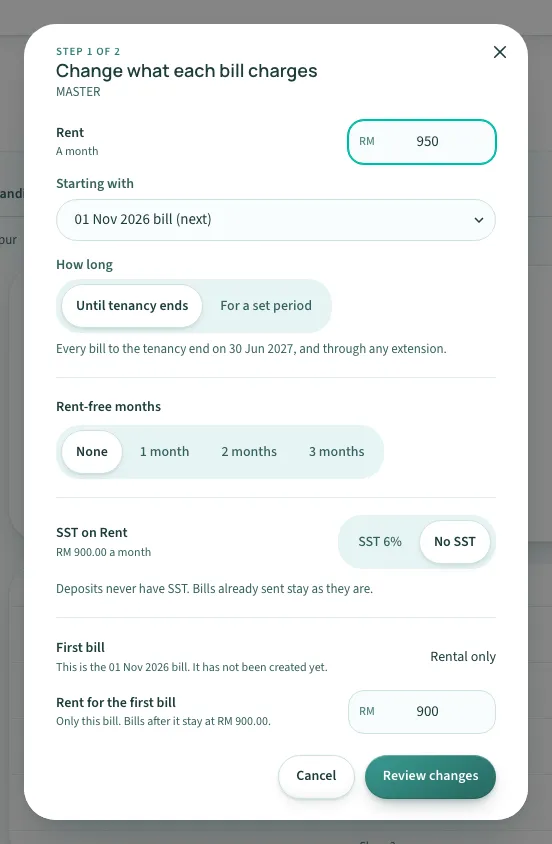
The sheet opens with the title Change what each bill charges.
- In the Rent box, type the new monthly rent.
- For each monthly charge, such as parking or utilities, type its new amount in its box.
The Starting with and How long rows appear once you change an amount.
- In the Starting with box, pick the bill the new amount starts from. Only bills not yet sent are listed. The next one is marked (next).
- Under How long, keep Until tenancy ends to change every bill to the end of the tenancy.
- To change only for a while, click For a set period, then pick the bill that goes back to the old amount under When it ends.
- Click Review changes. Check the summary, then click Save.
- To leave without changing anything, click Cancel.
The sheet only changes a charge the tenancy already has. It cannot add a new monthly charge to a tenancy that is already running.
If the rent cannot be changed
Section titled “If the rent cannot be changed”Once the agreement is signed, the rent and monthly charges are locked. The sheet says “Rent is set by the signed term. Renew tenancy to change it.” Click Renew tenancy to make a new term with the new amount.
If the property rent has changed
Section titled “If the property rent has changed”If you change the property’s rent, the Billing tab shows a note under How this tenancy bills. It says the property rent is now a new amount, but this tenancy bills the old amount. Click Change rent in the note to open the same sheet. The tenancy’s bills do not change until you save it there.
Change one bill only
Section titled “Change one bill only”Use this when one month needs an extra charge, such as a one-off repair fee. The change applies to that bill and no other month. This guide uses the next bill. A bill that has already been sent cannot be edited this way.
- Open the tenant’s Billing tab, as in the steps above.
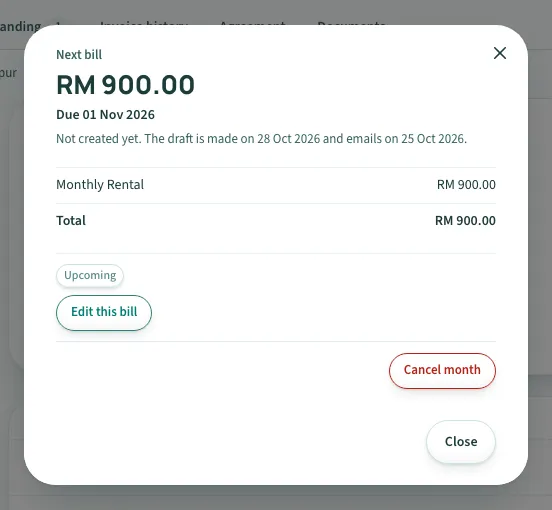
- In the Next bill card, click Open bill.
- In the bill window, click Edit this bill.
- Click + Add charge. A new line appears on the right.
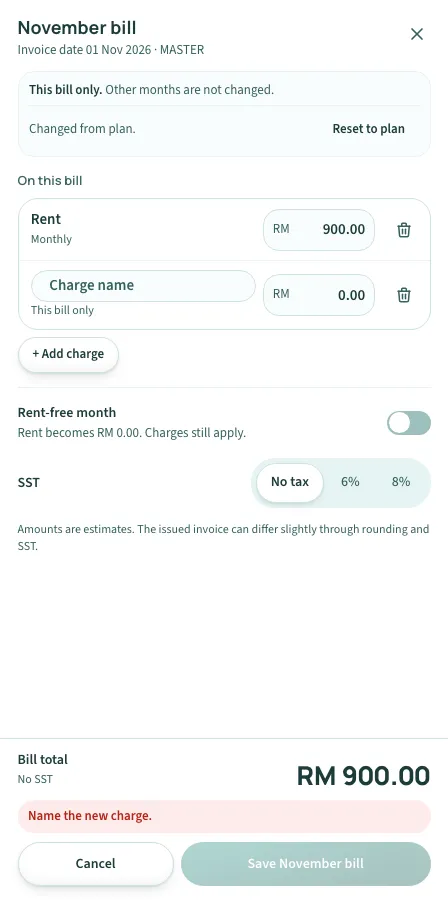
- Type a name for the charge in Charge name, then type its amount.
The new line is tagged This bill only, so it is not added to later bills. The note at the top reads “Other months are not changed.”
- Click Save for that month’s bill. The button names the month, for example Save November bill.
- To leave without changing anything, click Cancel.
To remove the change later, open the same bill and click Reset to plan.
What the First bill row does
Section titled “What the First bill row does”The sheet also has a First bill row, which appears while the first bill has not been created. It only sets whether that bill includes the deposits and other first-time charges, and the rent for that one bill. It does not add a new charge.
Change the property’s default rent
Section titled “Change the property’s default rent”The property’s rent is the amount new tenancies start with. Tenancies that already exist keep their own rent.
- Click Properties under Portfolio in the menu on the left.
- Click the property you want to change.
- Click the Charges tab.
- In Monthly rent, type the new rent.
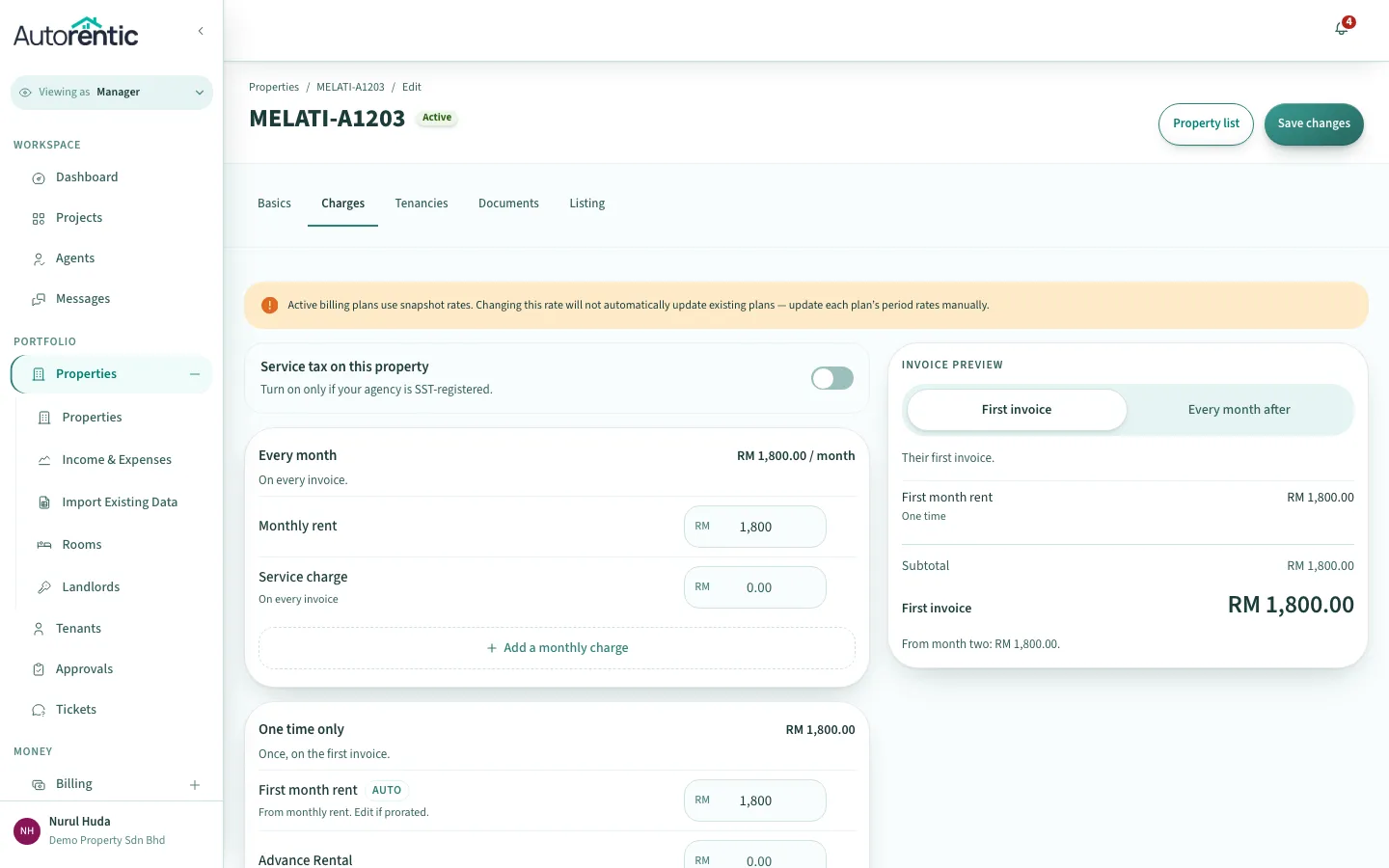
- Click Save changes.
- To change the rent of a tenancy that already exists, go to that tenancy’s Billing tab and follow Change the rent or a monthly charge for one tenancy.
The Charges tab shows a yellow note saying that active billing plans keep their own rates, so changing this rate does not update them. Change each tenancy’s rent in its own Billing tab, as in the section above.
SST on each charge
Section titled “SST on each charge”SST is set per line in the same Change what each bill charges sheet.
- Open the sheet from Each bill charges, as in the first section.
- Find the row SST on followed by the line, such as SST on Rent.
- Click the rate you want, such as SST 6%, or click No SST.
- Click Review changes, then click Save.
Deposits never have SST. Bills already sent stay as they are.
What to do next
Section titled “What to do next”Read Recording a cash or bank-transfer payment to see how a tenant’s payment is recorded against a bill.
Ready to try it?
Go back to Autorentic and do it now, while the steps are fresh.