

Chasing unpaid rent
Guide published:
Use this guide when a tenant is behind on rent. Autorentic shows you every unpaid bill, emails the tenant reminders on set days, lets you send a reminder yourself, and can add a late payment penalty to a bill.
Prefer to watch first? This 20-second video shows the same screens, with no sound.
If the tenant paid you outside Autorentic, record it instead. See recording a cash or bank-transfer payment.
Finding unpaid bills
Section titled “Finding unpaid bills”- Click Billing under Money, then click Invoices.
- Look at the Status column of each bill.
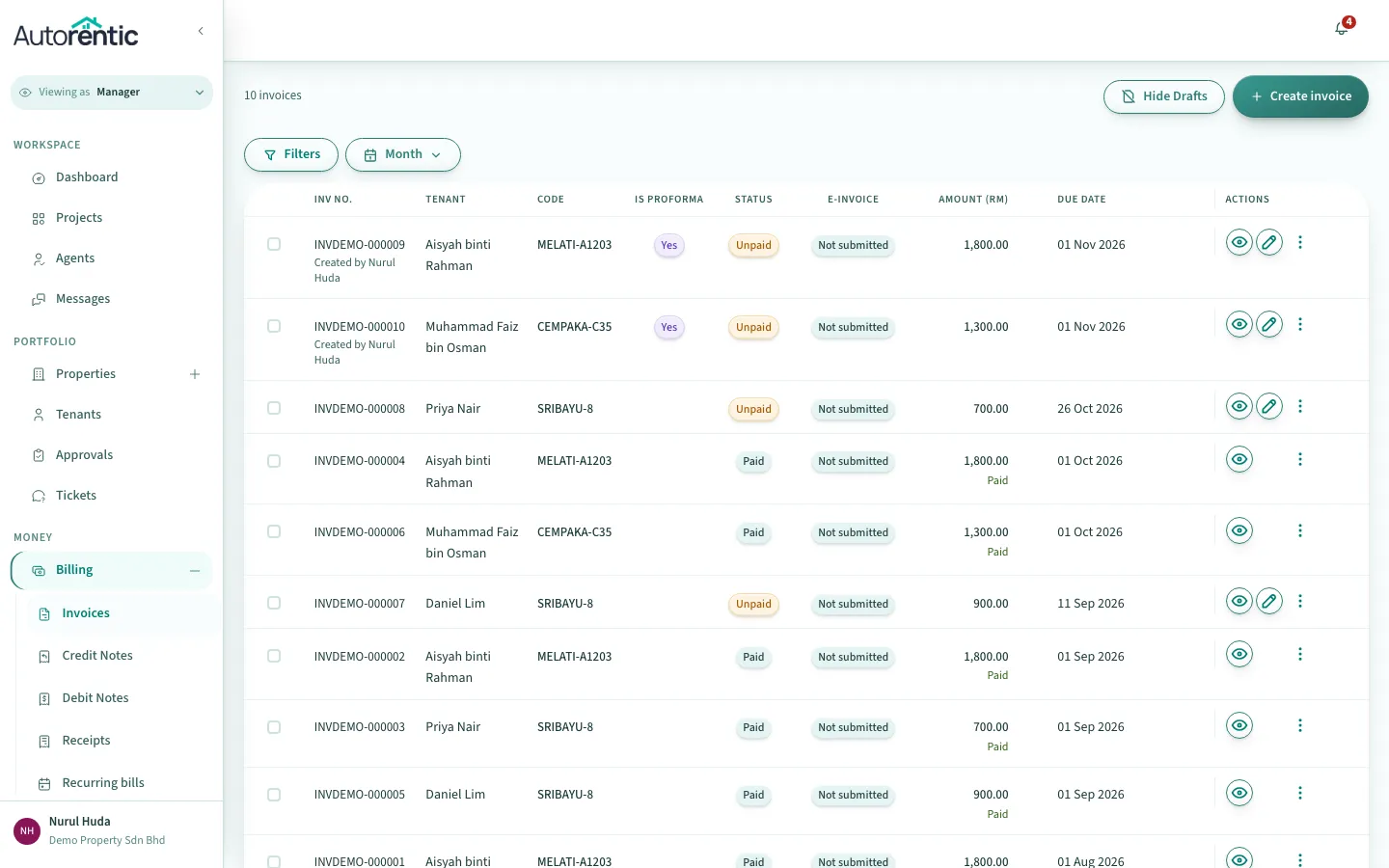
The statuses mean:
- Unpaid: no payment has been recorded. It keeps this label after the due date, so check the Due date column to see which bills are late.
- Partially paid: some of the money has been recorded.
- Late: appears only on a bill split into parts, when a part that is still owed is past its due date.
- Paid and Cancelled: nothing more is owed.
The Due date column shows the date each bill was due.
- Click the invoice number of a bill to open it.
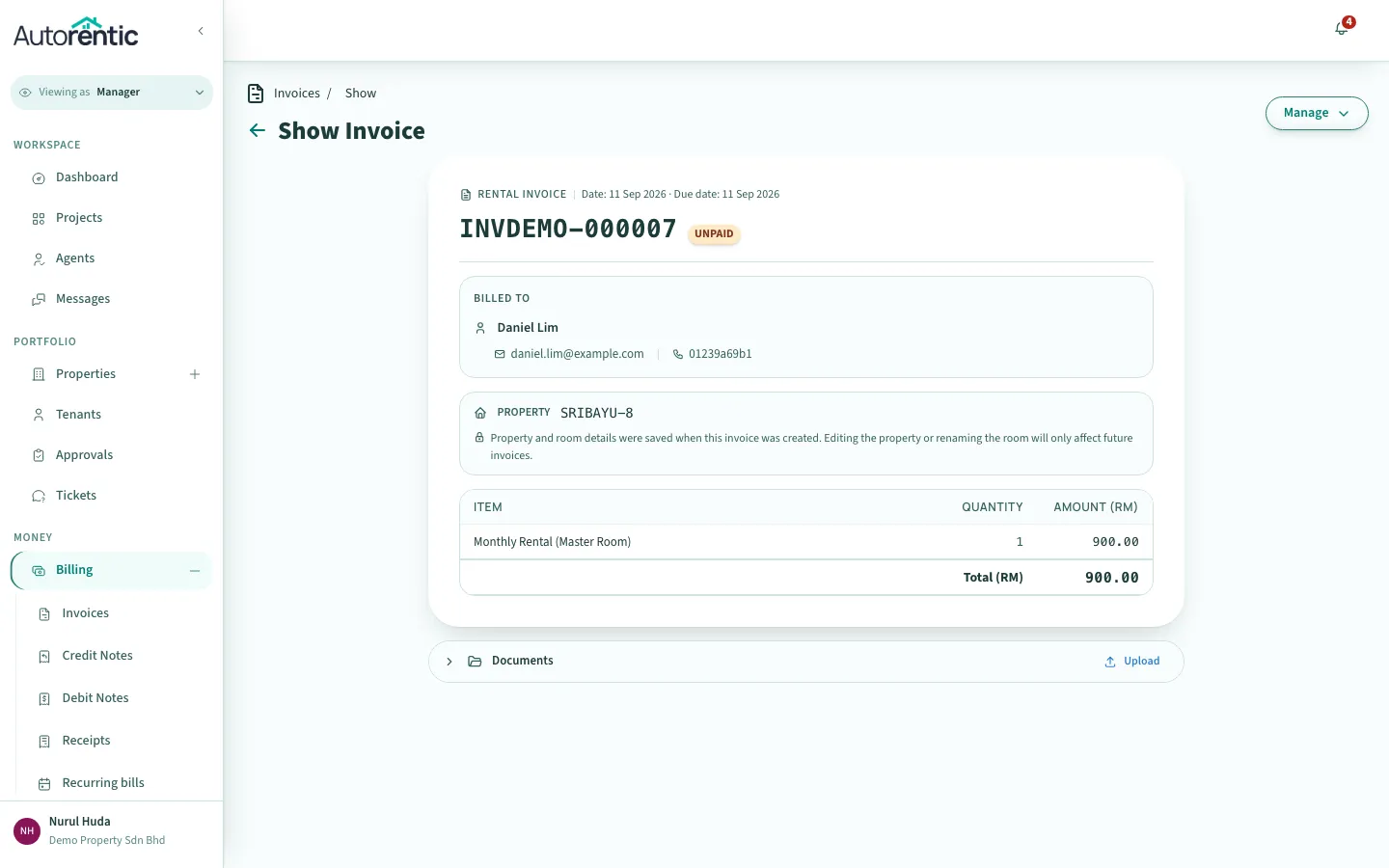
The bill page shows the same status badge. Use the Manage button on the bill to record a payment.
Seeing overdue bills on the dashboard
Section titled “Seeing overdue bills on the dashboard”The dashboard has an Overdue Invoice box. It lists up to 20 of the most recent unpaid bills, grouped by month, for the date range shown on the dashboard.
- Click Dashboard in the sidebar.
- Find the Overdue Invoice box.
- Click View all invoices at the top of the box to open the full invoice list.
Seeing every unpaid bill with days late
Section titled “Seeing every unpaid bill with days late”The arrears report lists every unpaid bill with the number of days since its date.
- Click Reports in the sidebar, then click Reports under it.
- Open the report menu at the top right, then choose Outstanding & Arrears.
- Click the period box. It shows This month. Choose Last 3 months to include older bills.
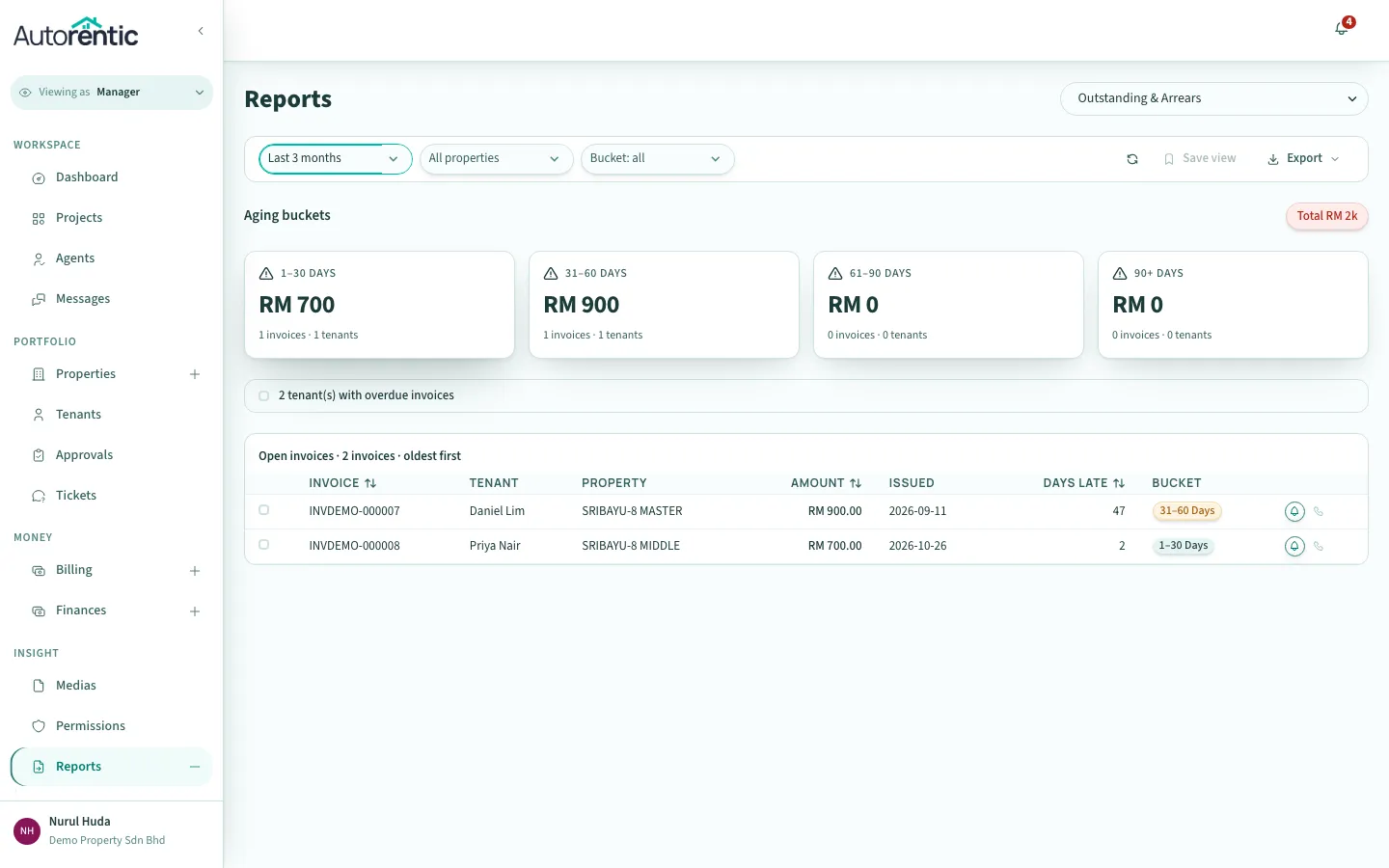
The Days Late column counts the days since each bill’s date. The Bucket column groups them into 1 to 30 days, 31 to 60 days, 61 to 90 days and over 90 days. The totals at the top add up the amounts owed.
Sending a reminder by hand
Section titled “Sending a reminder by hand”There are two ways to send a reminder from this report. They behave differently.
The arrow button in a row sends at once. It has no confirmation step. Use it only when you are sure. The button’s tooltip reads Send reminder. If the tenant has no email address, the tooltip reads No email on file and no email is sent.
Sending several reminders together asks you first. Use this way to send to one or more tenants with a confirmation step.
- Tick the checkbox at the start of the tenant’s row.
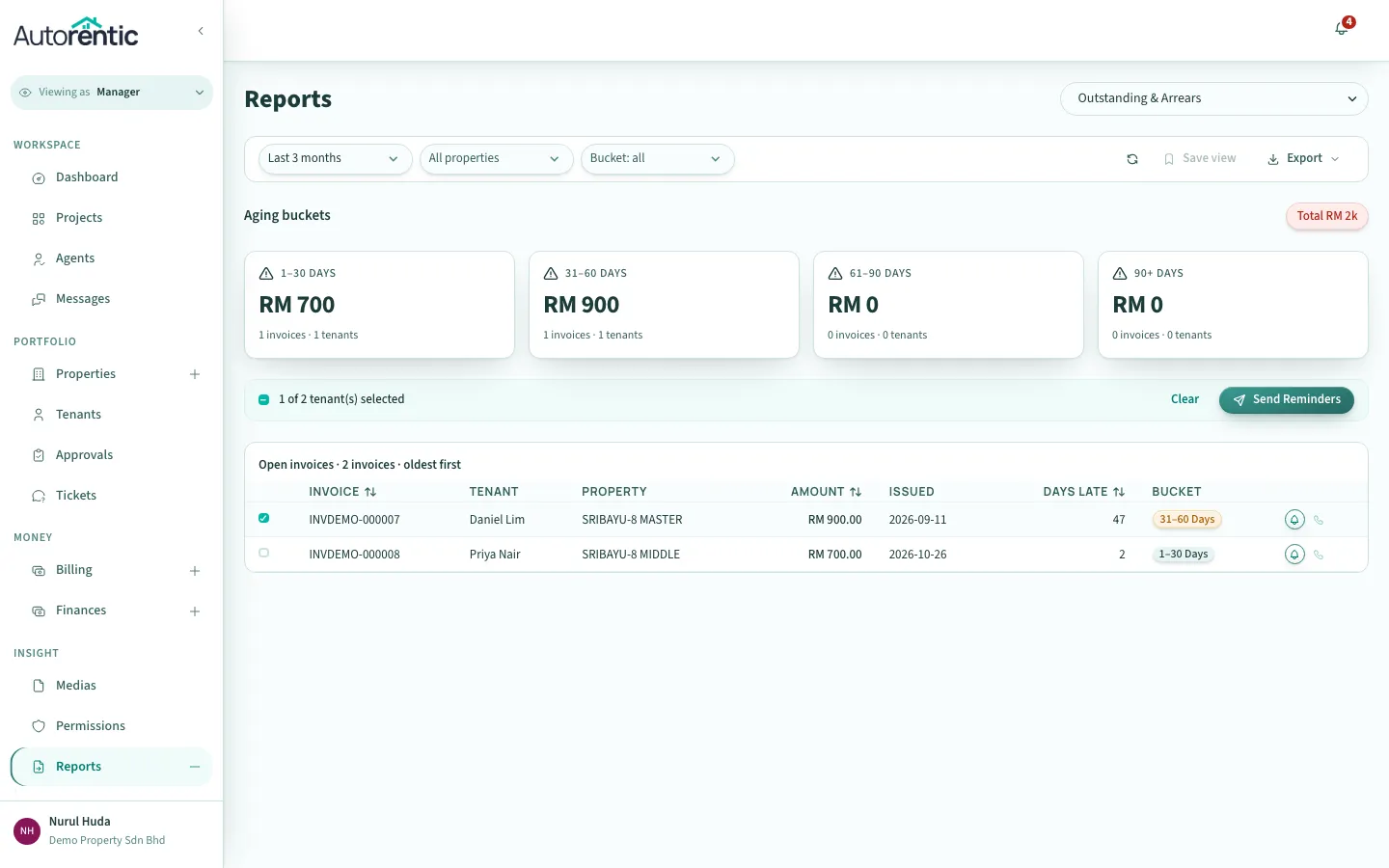
- Click Send Reminders above the table.
- Read the dialog. It says how many tenants will be emailed.
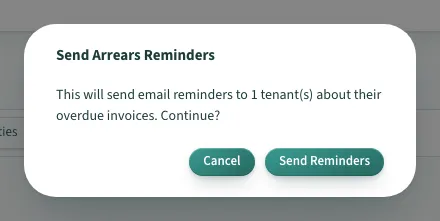
- Click Send Reminders in the dialog to send, or click Cancel to stop without sending anything.
Each reminder lists the tenant’s unpaid bills, with the days late for each, and the total owed. Autorentic shows a message when the send finishes. If the tenant has no email address on file, the message says no email was sent.
What Autorentic sends on its own
Section titled “What Autorentic sends on its own”Autorentic sends these reminders without you doing anything. Each runs at midnight, Kuala Lumpur time.
Reminders to the tenant for each unpaid bill. A reminder is emailed to the tenant on three dates for each bill that is still unpaid:
- On the bill’s date. The subject starts Invoice Due Today.
- 7 days after the bill’s date. The subject starts Overdue Invoice.
- 14 days after the bill’s date. The subject starts Overdue Invoice.
A bill that is paid before a reminder date gets no reminder. A draft invoice (the app also calls it a proforma) gets no reminder. A bill whose tenant has no email address gets no reminder email. The tenant also sees a notice in their account on those days.
A summary to you. On the 1st, 15th and 29th of each month, Autorentic emails the Unpaid Invoice Summary to the PM who created the bills. It lists your bills that were due more than 7 days ago and are still unpaid.
Adding a late payment penalty
Section titled “Adding a late payment penalty”You can set a penalty for a property. Autorentic then adds a fee to a bill that is still unpaid after a grace period.
- Click Properties in the sidebar, then open the property.
- Click Edit.
- Scroll to the Late payment penalty section.
- Choose a Type: Percent or Fixed Amount. Choose No Penalty to turn the penalty off.
- Type the Amount. For Percent, type the percentage. For Fixed Amount, type the ringgit amount.
- Type the Grace Period (No. of Days).
- Click Save.
On the day the grace period ends, if the bill is still unpaid, Autorentic adds a line called Penalty Fee to the bill. For Percent, the fee is that percentage of the bill total before tax. For a bill split into parts, it is a percentage of the part still owed. For Fixed Amount, the fee is the amount you typed. A bill gets the fee once. A bill split into parts gets it once for each part that is late.
Two things to know:
- The grace period is taken from the copy of the property saved on the bill when the bill was made. A bill made before you set a penalty gets no fee.
- A draft invoice never gets a fee.
What to do next
Section titled “What to do next”- If a bill is still Unpaid after 14 days, send a reminder from the arrears report. Tick the tenant, then click Send Reminders.
- If the tenant paid you in cash or by bank transfer, record the payment. See recording a cash or bank-transfer payment.
- If a bill should have a penalty fee and does not, check the Late payment penalty section of the property. Then check that the bill was made after you set the penalty.
Ready to try it?
Go back to Autorentic and do it now, while the steps are fresh.