

Accept your invitation and sign your tenancy agreement
Guide updated: A tenancy that has ended is now listed under Past rentals, below your current one.See all changes to this guide
Your property manager has added you to Autorentic and sent you a tenancy agreement to sign. This guide shows how to set your password, read the agreement and sign it. It takes about ten minutes. You sign on the screen, so there is nothing to print.
Prefer to watch first? This 30-second video shows the same screens, with no sound.
You need the email address your property manager used to invite you. If the invitation email does not arrive, ask your property manager to check that address.
Find the invitation email
Section titled “Find the invitation email”- Open the email with the subject You have been invited to Autorentic!
- Click Create your account password now.
The button opens a page where you set your password.
Later, you also receive an email with the subject Your Tenancy Agreement Is Ready to Sign. It tells you the agreement is ready for your signature.
Set your password
Section titled “Set your password”- On the Update password page, type a password in New Password.
- Type the same password in Confirm new password.
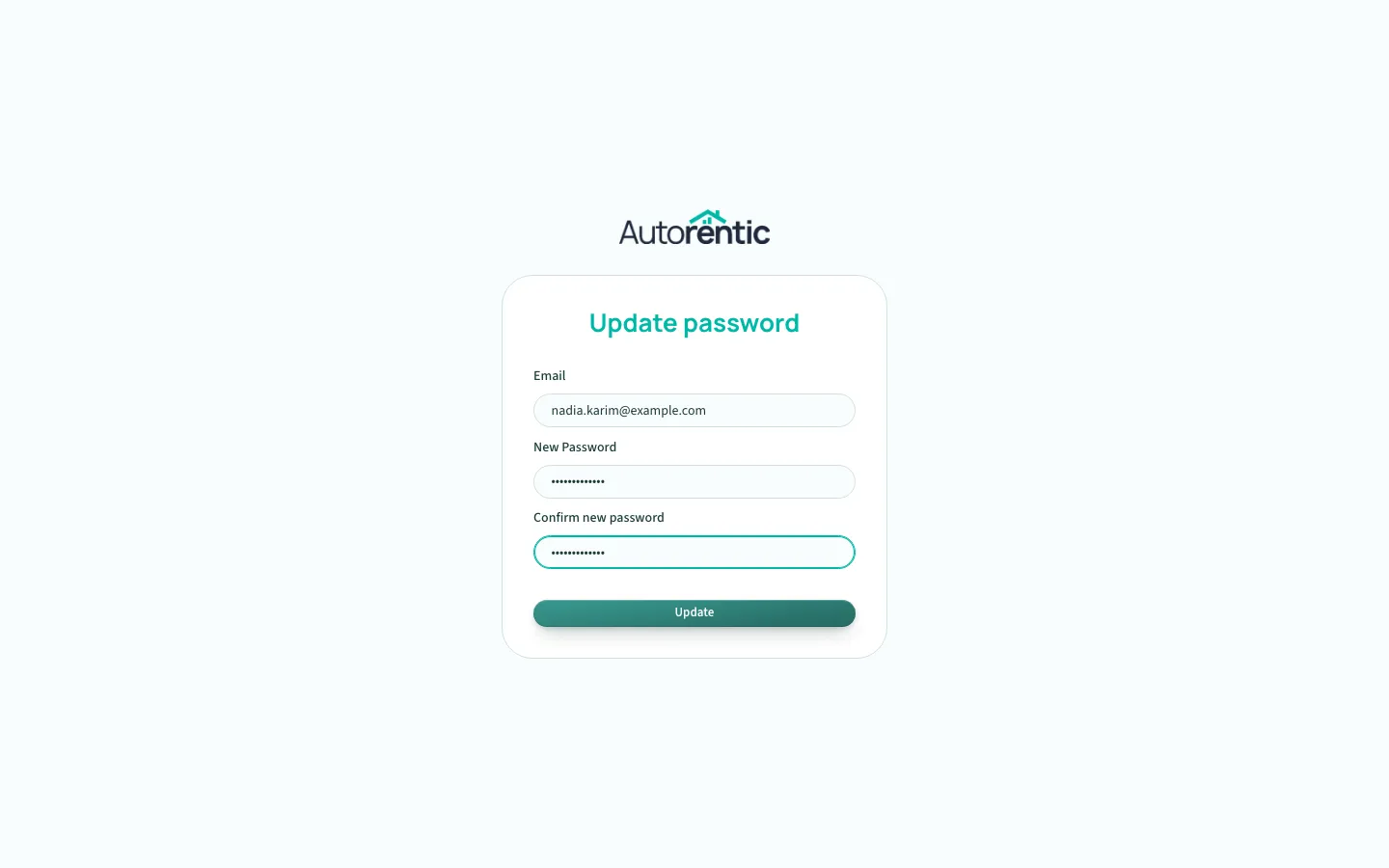
- Click Update.
Once the password is saved, go to app.autorentic.com and sign in.
Sign in
Section titled “Sign in”- Type your email address in Email.
- Type your password in Password.
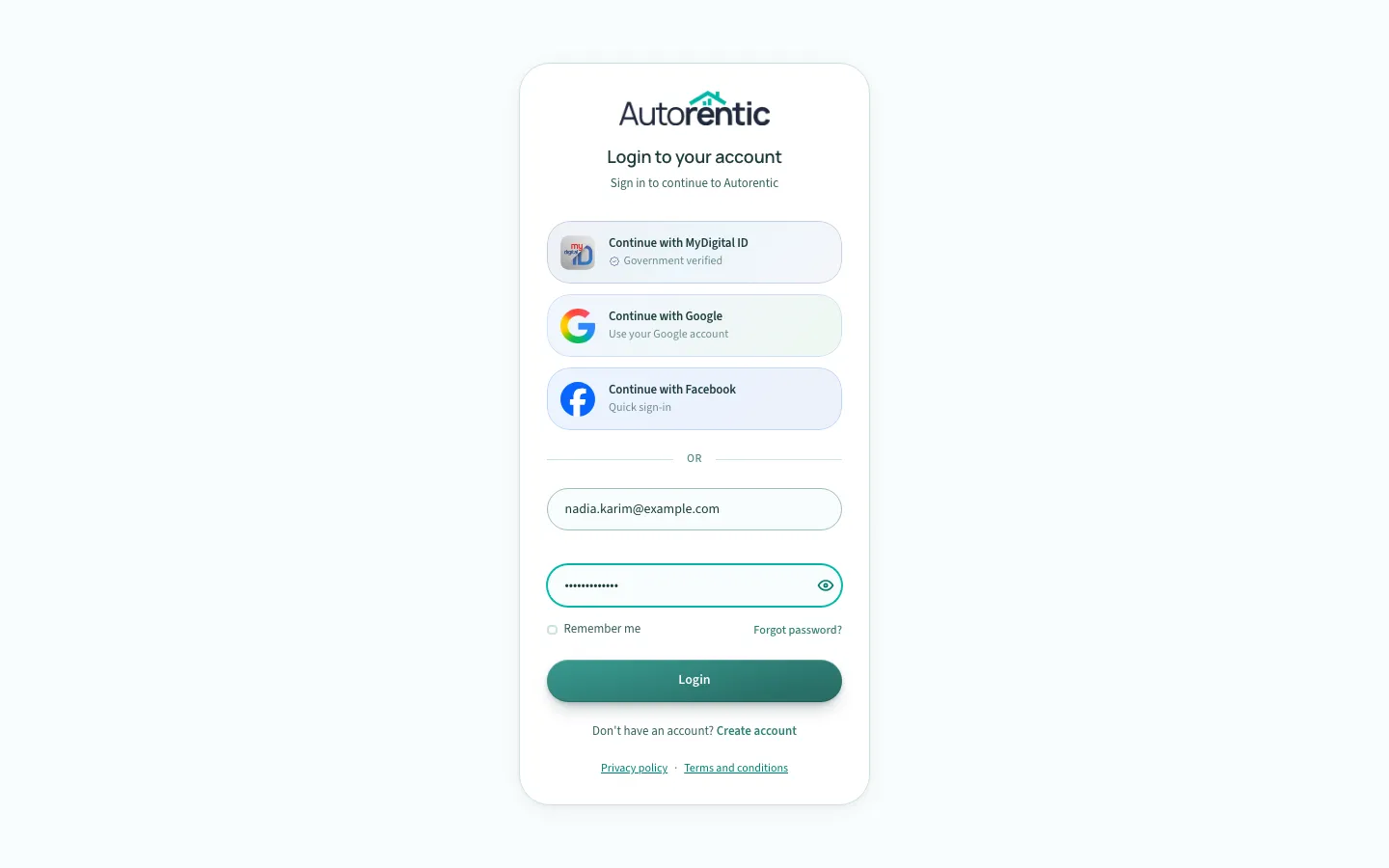
- Click Login.
Use your email and password here. The buttons for MyDigital ID, Google and Facebook are for other sign-in methods.
Open your agreement
Section titled “Open your agreement”- Click My Rental in the menu.
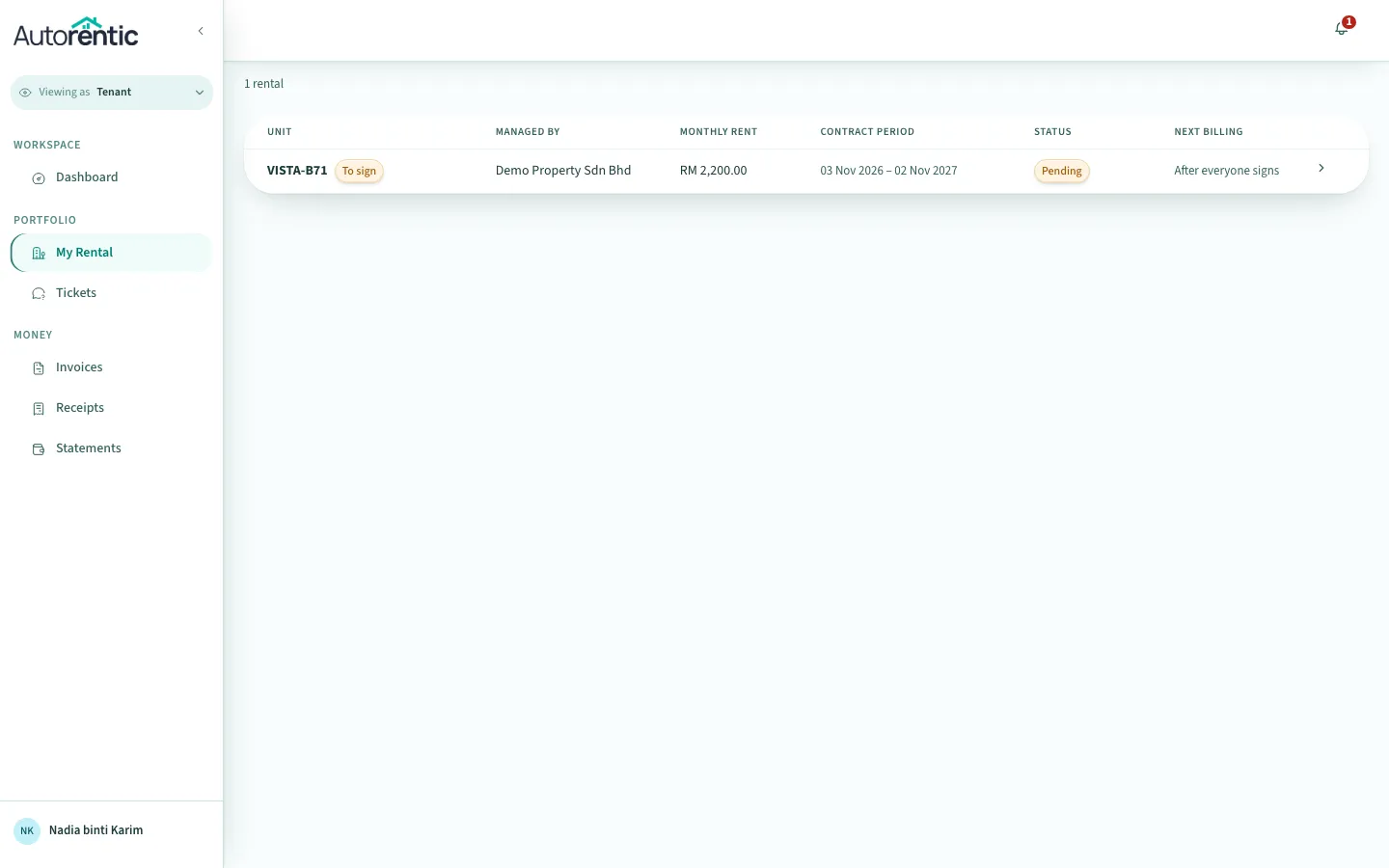
If you rented with this property manager before, that tenancy is listed under Past rentals, below your current one. It stays there so you can still open its agreement.
- Click the unit code of the rental that shows the To sign tag.
The page opens with Your tenancy agreement. It shows your unit, your rent, the term and the Sign by date.
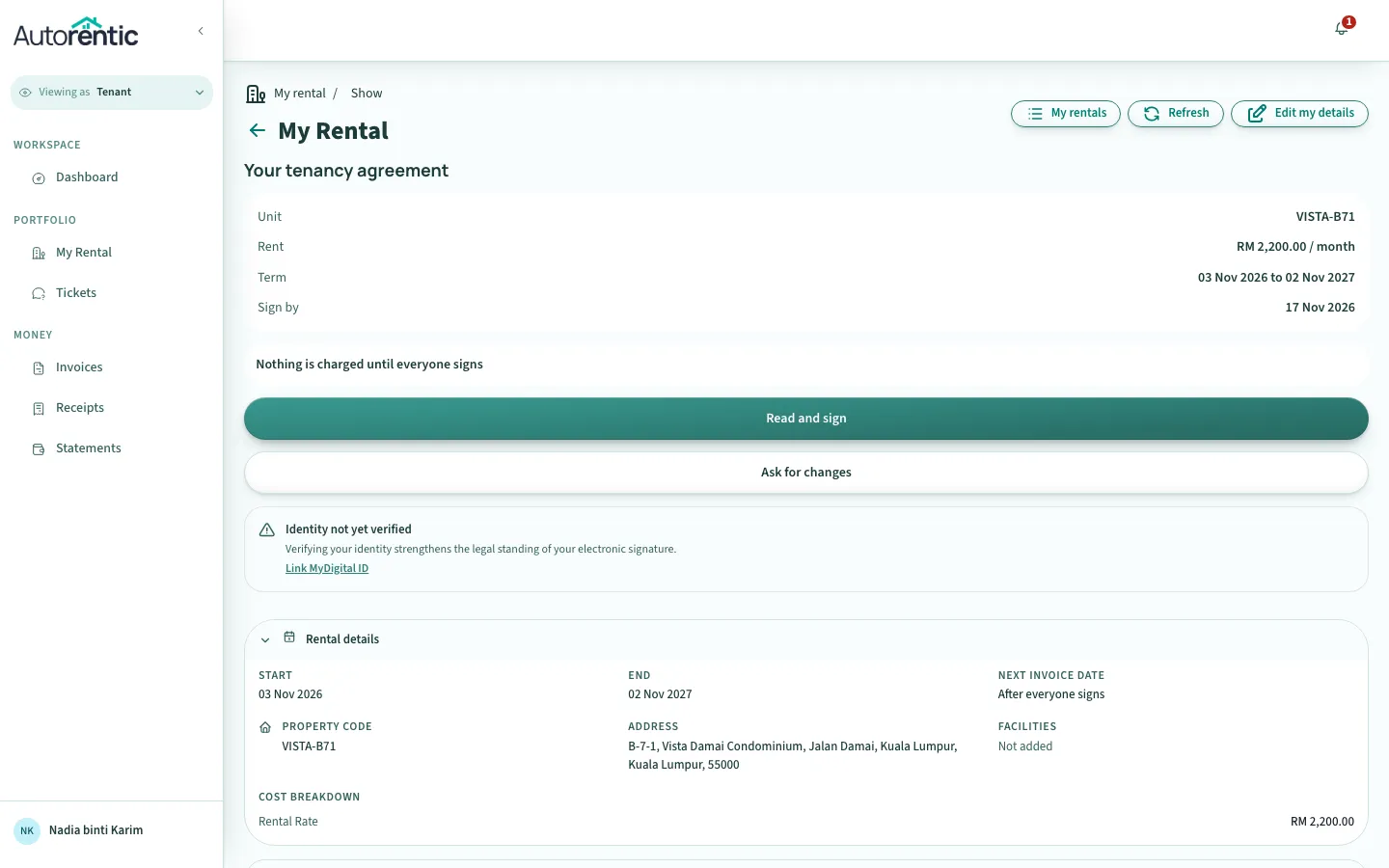
The Sign by date is the last day to sign. The app sets it 14 days after the agreement was last updated. Sign before that date.
Read the agreement
Section titled “Read the agreement”- Click Read and sign.
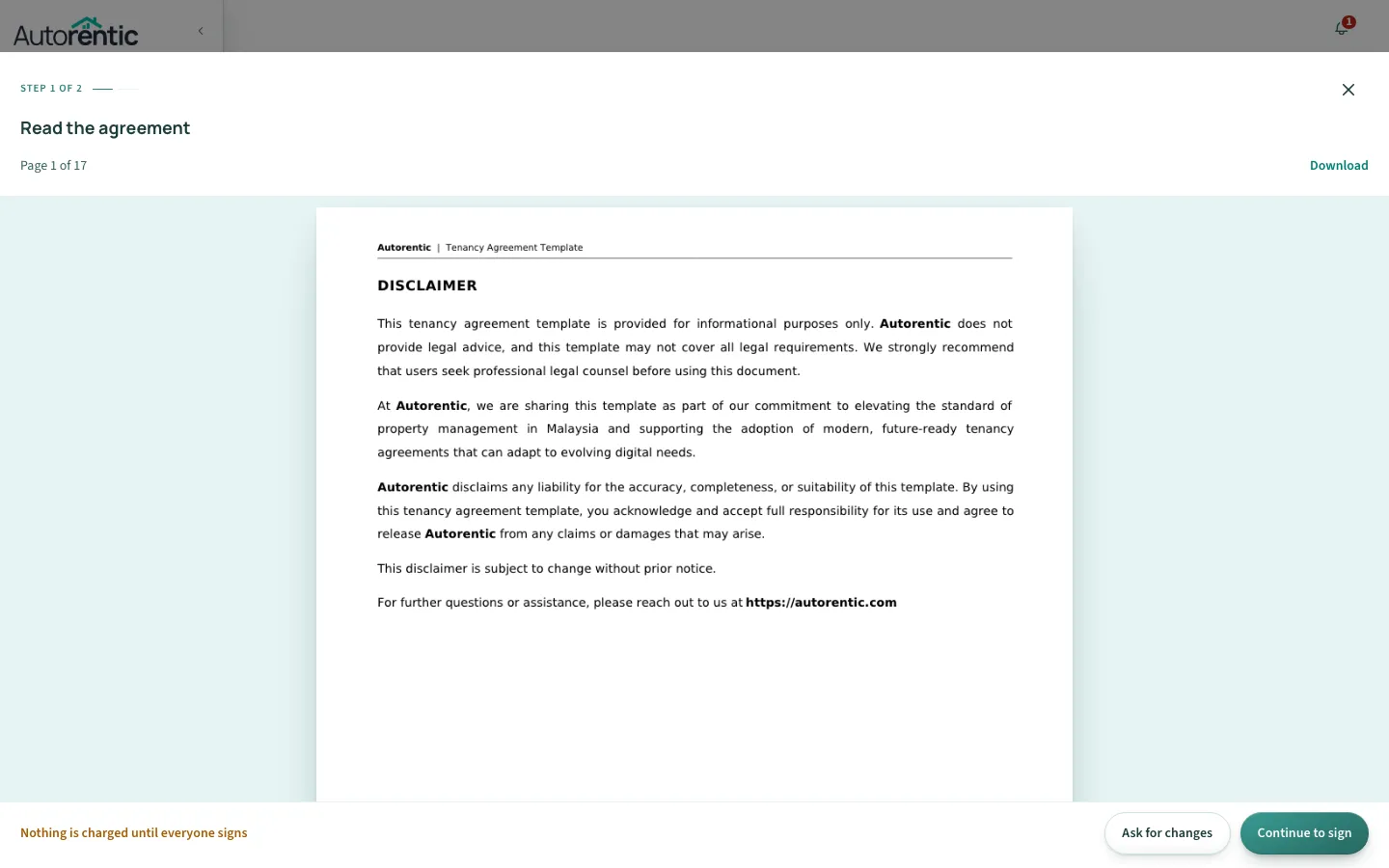
- Read every page. Scroll down to reach the rest. The top of the page shows the page count, for example Page 1 of 17.
- Click Continue to sign when you have finished reading.
If something in the agreement is wrong, click Ask for changes instead of signing. Signing is then paused while the change is worked out.
Sign the agreement
Section titled “Sign the agreement”- Read the paragraph above the box. It says your electronic signature is the legal equivalent of a handwritten signature, and that it cannot be withdrawn once you submit it.
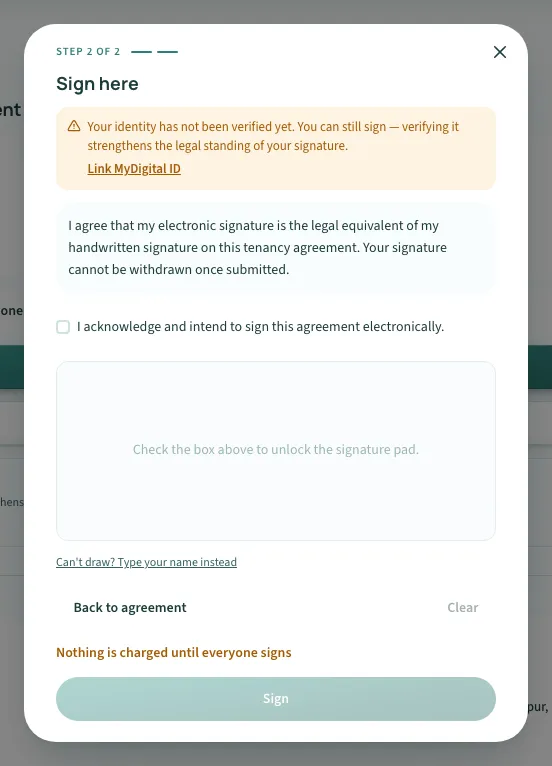
You may also see a note that your identity is not verified. You can still sign.
- Tick I acknowledge and intend to sign this agreement electronically.
- Draw your signature in the box with your finger or mouse.
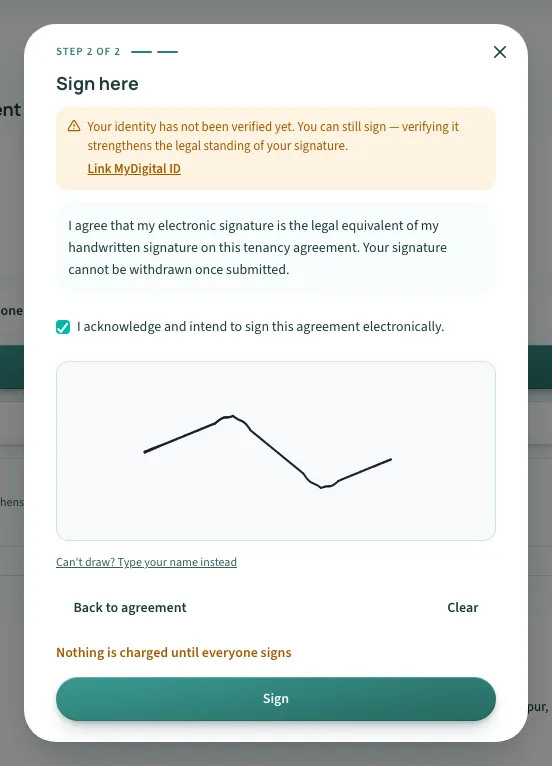
If you cannot draw, click Can’t draw? Type your name instead, then type your full name.
- Click Sign.
After you sign
Section titled “After you sign”- Check the page. It says you have signed and shows who still has to sign, for example the landlord.
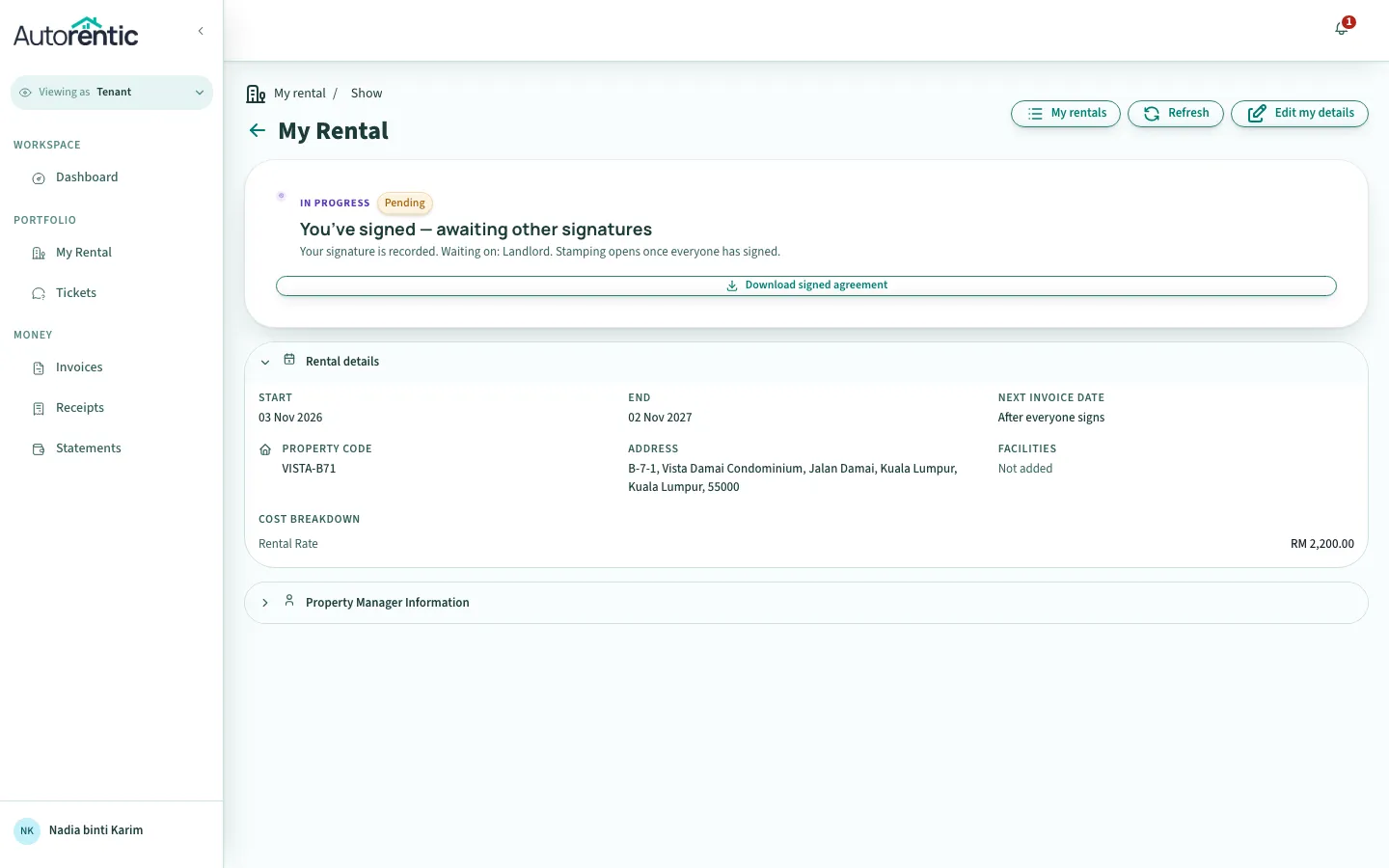
- To keep a copy, click Download signed agreement.
You also receive an email with the subject Signed Tenancy Agreement, with the signed agreement attached.
Your property manager signs next. If the agreement names a witness, the witness signs too.
No invoice yet?
Section titled “No invoice yet?”Billing starts only after everyone has signed. Until then, the page shows Nothing is charged until everyone signs, and the Next invoice date reads After everyone signs.
When the last signature is in, your first invoice is created. It includes the first month’s rent and any one-time charges in your agreement, such as a deposit. To pay it, follow Paying your rent online.
If the signing window has closed
Section titled “If the signing window has closed”If you do not sign by the Sign by date, the page says the signing window has closed. It asks you to contact your property manager, who can prepare the agreement again so that signing opens.
What to do next
Section titled “What to do next”Sign before the Sign by date. If the rent, the unit or the dates on the agreement are not what you agreed, contact your property manager before you sign, or click Ask for changes.
What changed in this guide
- A tenancy that has ended is now listed under Past rentals, below your current one.
- First published.
Ready to try it?
Go back to Autorentic and do it now, while the steps are fresh.