

Setting up monthly rent billing
Guide published:
This guide sets up the monthly rent bill for a tenancy, then shows you where its bills and invoices are. It takes about five minutes.
Prefer to watch first? This 20-second video shows the same screens, with no sound.
A tenancy is one tenant renting one unit. A tenant with two units has two tenancies, and each one is billed separately.
If you send the tenancy agreement for e-signing in Autorentic, billing starts only after everyone has signed. Until then, no bills are made for that tenancy.
Setting when a tenancy’s rent is billed
Section titled “Setting when a tenancy’s rent is billed”- Open the tenant from Tenants under Portfolio.
- Click the Billing tab.
- If the tenant has more than one tenancy, pick the one you want from the buttons at the top.
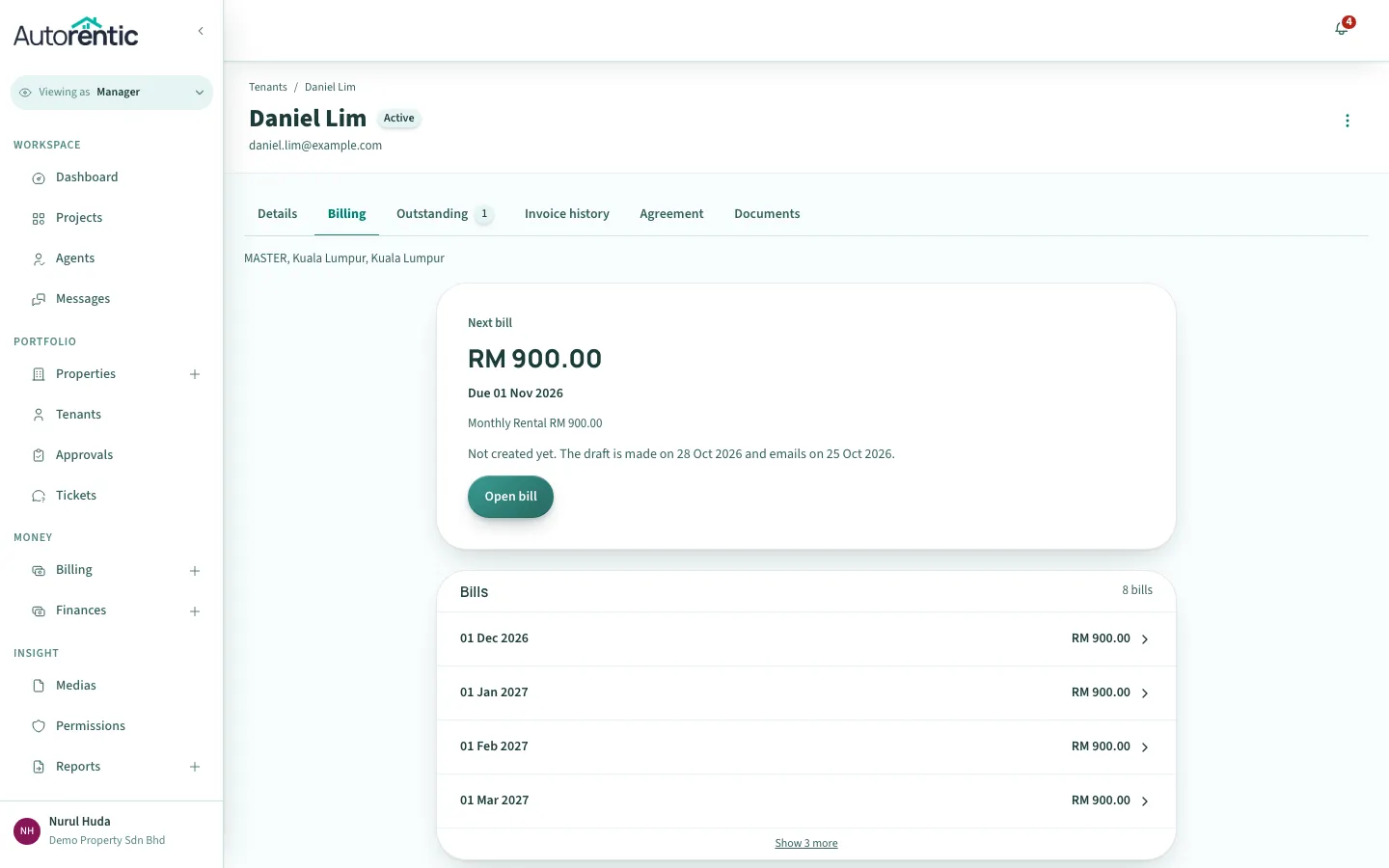
The Next bill card shows the amount and due date of the next bill. Under the amount, the card says whether the bill exists yet. For example, “Not created yet. The draft is made on 10 Oct 2026 and emails on 02 Nov 2026” means the draft invoice (the app also calls it a proforma) is not made until 10 October, and the tenant gets the email on 2 November.
- Find the Bills go out row and click Change.
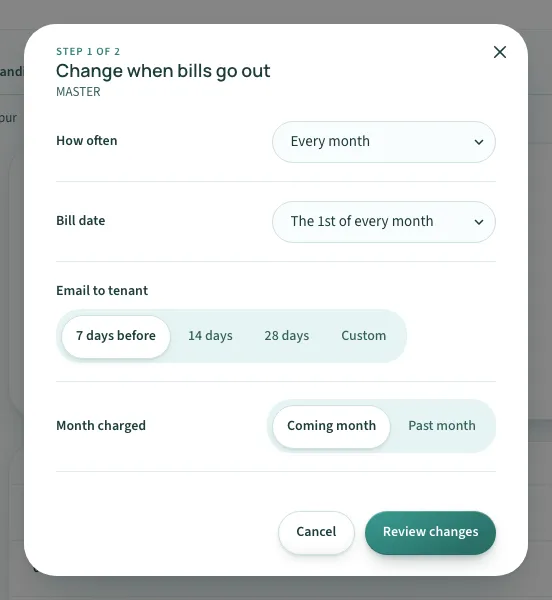
- Set each choice in the sheet:
- How often: how often a bill is made, for example every month.
- Bill date: the day of the month the bill is dated.
- Email to tenant: how many days before the due date the tenant gets the email. Choose 7 days before, 14 days, 28 days, or Custom.
- Month charged: Coming month charges the month ahead, and Past month charges the month just gone.
- Click Review changes. Check the summary, then click Save.
- To leave without changing anything, click Cancel.
When you add a tenant, the same choices appear in the Contract & invoicing step. The Bills card in that step previews the first bill before you save.
Finding every recurring bill
Section titled “Finding every recurring bill”- Click Billing under Money in the menu on the left.
- Click Recurring bills.
The menu lists the Billing pages. Recurring bills is the last item in the group, below Receipts.
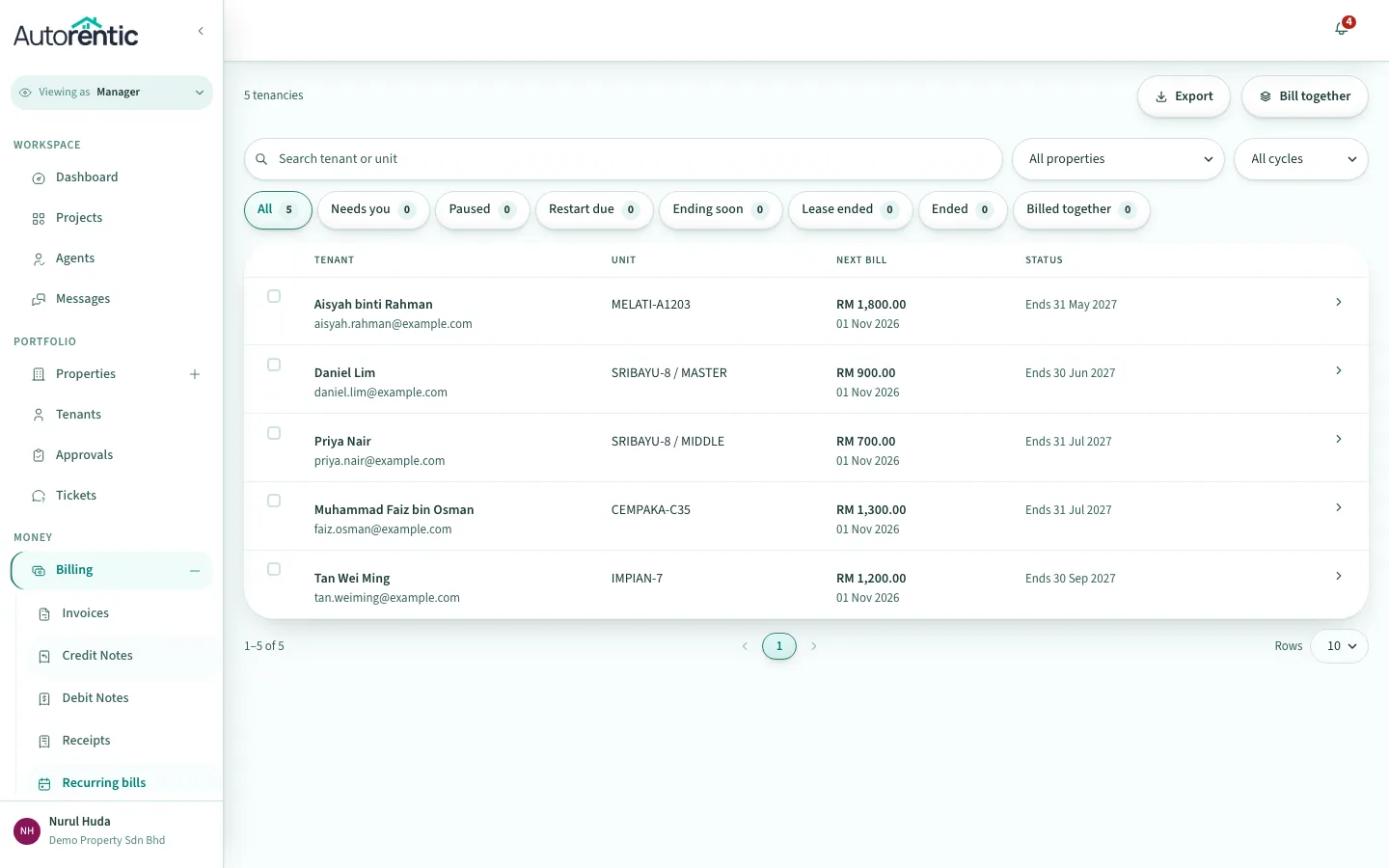
- Read each row. The Next bill column shows the amount and date. The Status column shows what is happening, for example:
- Emails 03 Nov: the next bill emails the tenant on that date.
- Lease ended: the tenancy has ended, so no more bills are made.
- No bills: nothing is scheduled for this tenancy.
- Use the search box and the filter buttons, such as Lease ended, to find a tenancy quickly.
Reading your invoices
Section titled “Reading your invoices”Each bill becomes an invoice. Open Billing, then click Invoices.
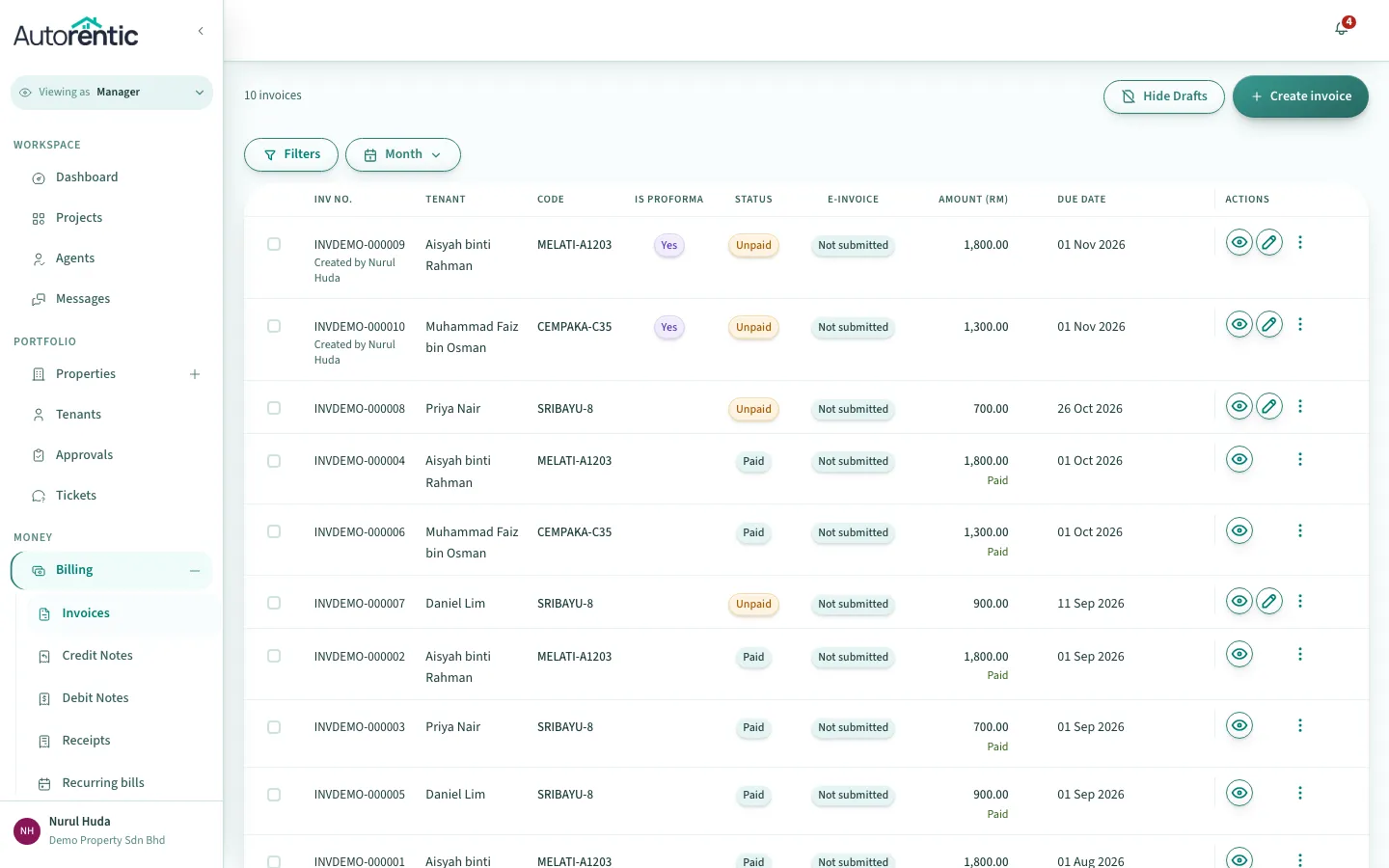
- Read the Status column. The common ones are:
- Unpaid: the tenant has not paid anything yet.
- Partially paid: the tenant has paid part of the amount.
- Paid: the full amount has been paid.
- Cancelled: the invoice was cancelled and is not owed.
- Read the Is proforma column. Yes means the invoice is a draft. The tenant cannot see a draft yet. A note under the due date, such as “Tenant email in 12 days”, shows when the draft is issued and emailed. No means the invoice is issued, and the tenant can see it.
- Click the view icon on a row to open the invoice.
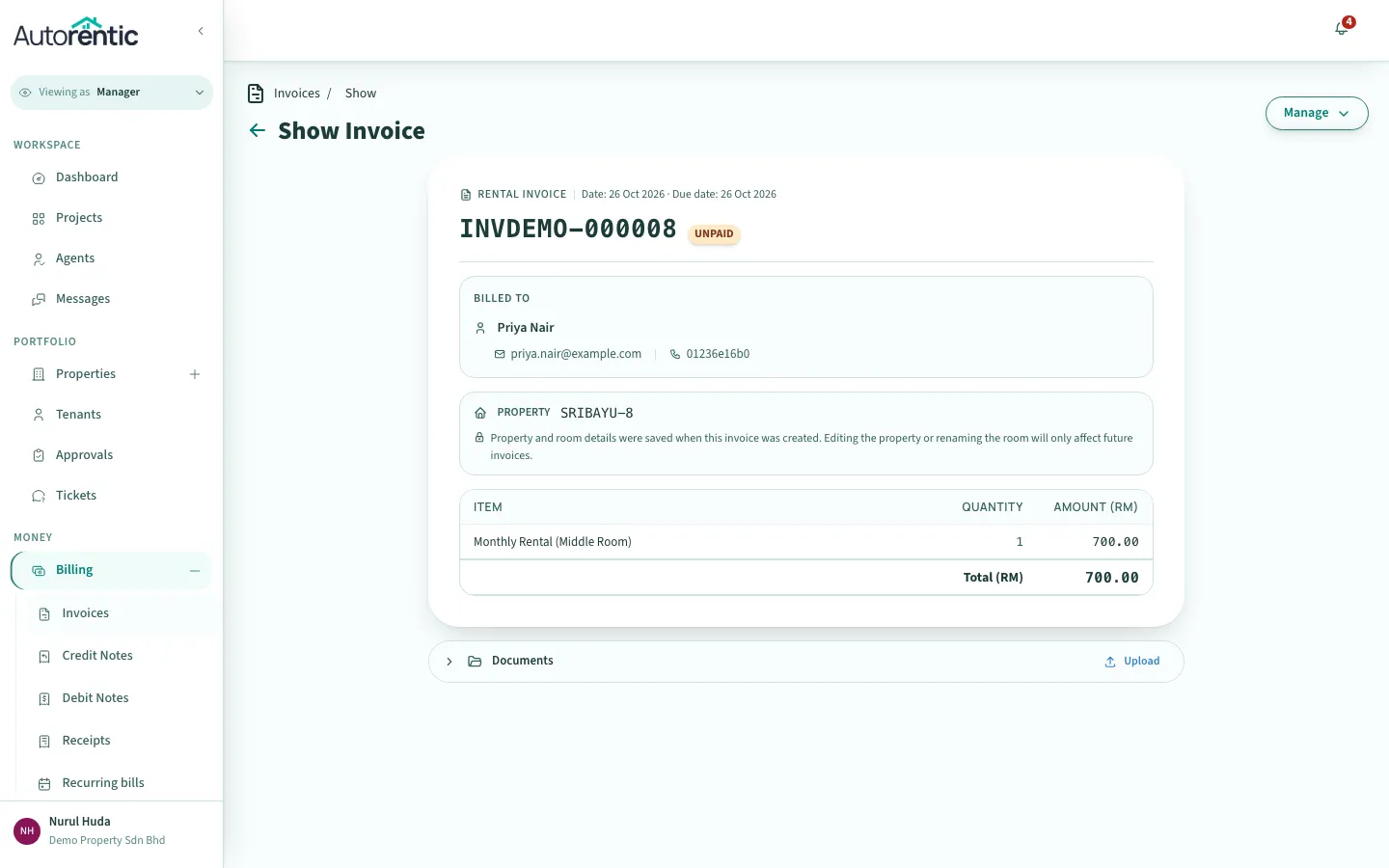
The invoice shows its status next to the number, the Date it was issued, and its Due date. Use the Manage menu at the top right to act on it.
If a bill is still unpaid after its due date
Section titled “If a bill is still unpaid after its due date”- Open the tenant from Tenants and click the Outstanding tab. It lists the unpaid invoices for that tenancy only.
- Open the invoice from that list and check its status.
- If it still says Unpaid, follow up with the tenant before the next bill goes out.
What to do next
Section titled “What to do next”Read Finding your way around if you want to see the rest of the menu first.
Ready to try it?
Go back to Autorentic and do it now, while the steps are fresh.