

Recording a cash or bank-transfer payment
Guide published:
Use this guide when a tenant paid you outside Autorentic, in cash or by bank transfer. You record the payment against the invoice, Autorentic creates a receipt for it and emails it to the tenant, and the tenant’s statement of account updates. On screen the button is Mark as Paid. It takes about five minutes.
Prefer to watch first? This 35-second video shows the same screens, with no sound.
Autorentic treats every payment you record this way the same, whether it was cash or a bank transfer. The dialog does not ask which one it was, so keep that detail in your own records.
Recording a part payment
Section titled “Recording a part payment”The tenant has paid part of the rent. You record the amount received, and the invoice shows what is still owed.
- Click Billing under Money, then click Invoices.
- Click the invoice number of the bill you are recording.
- Click Manage.
- Click Mark as Paid.
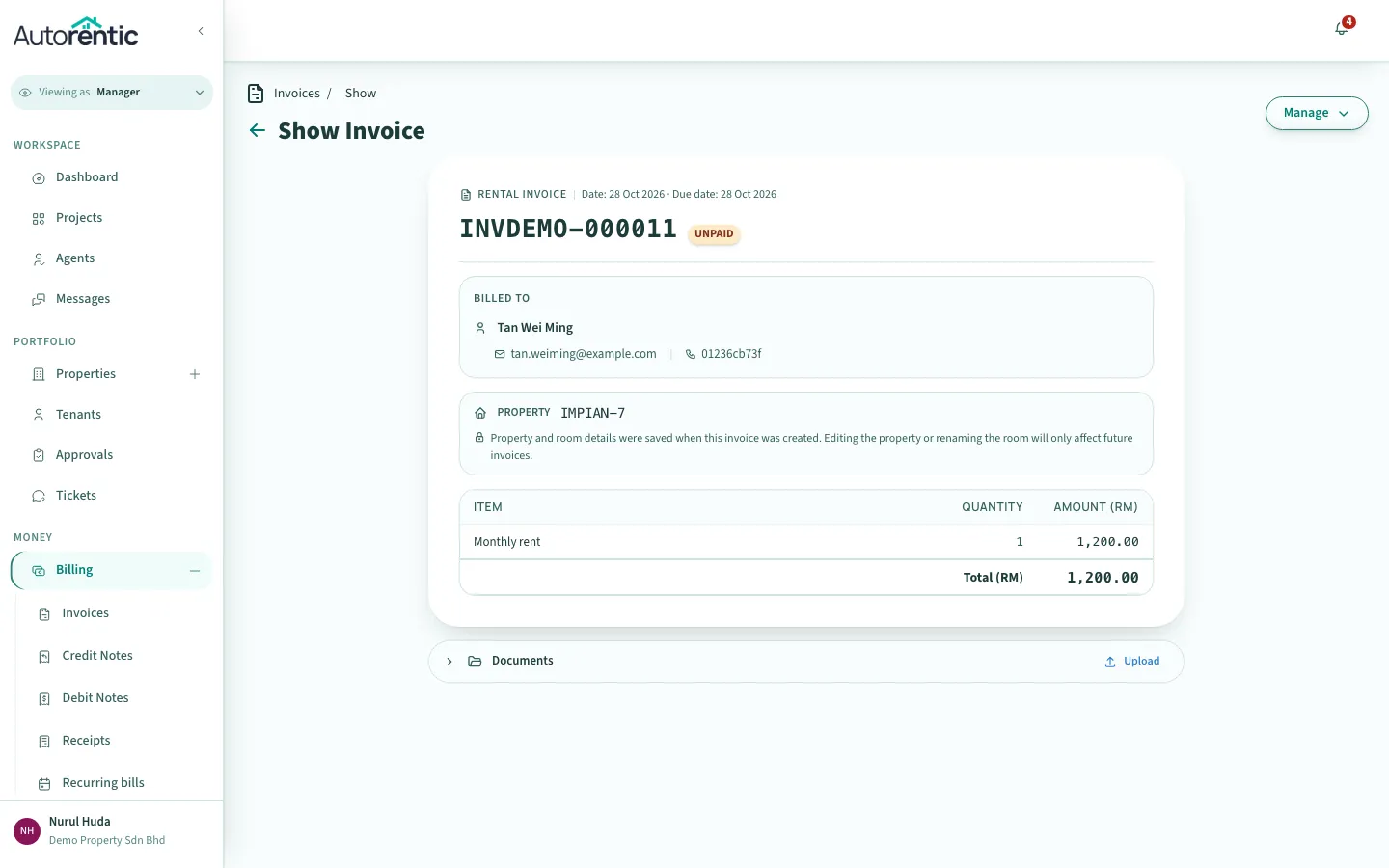
The dialog offers Full amount and Other amount. Choose Other amount for a part payment.
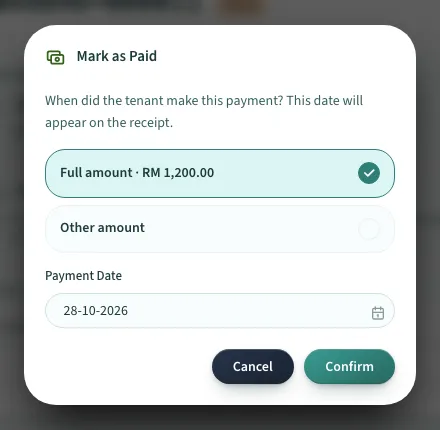
- Click Other amount.
- Type the amount the tenant paid in Amount.
Under the amount, the dialog states what is recorded and what will still be owed. Check that line before you continue.
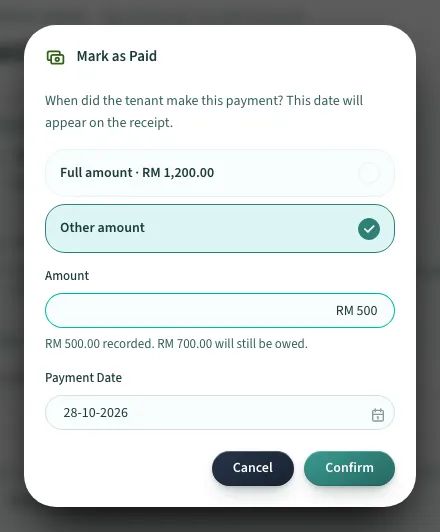
- Check the Payment Date is the day the tenant paid. It starts as today.
- Click Confirm.
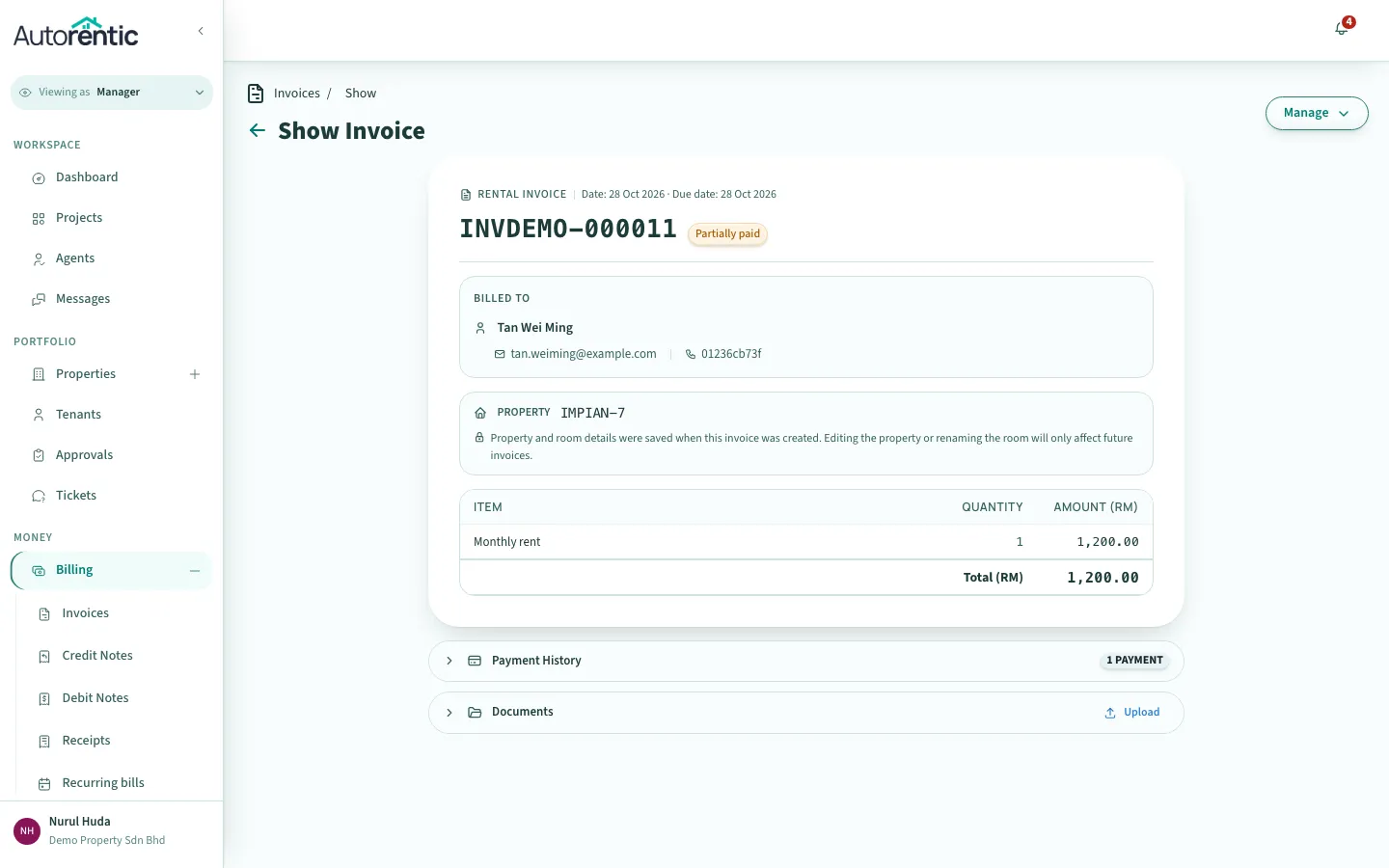
The invoice now shows Partially paid.
Recording the rest
Section titled “Recording the rest”When the tenant pays the balance, record it the same way, with the full remaining amount.
- Click Manage.
- Click Mark as Paid.
- Click Full amount. It shows the amount still owed.
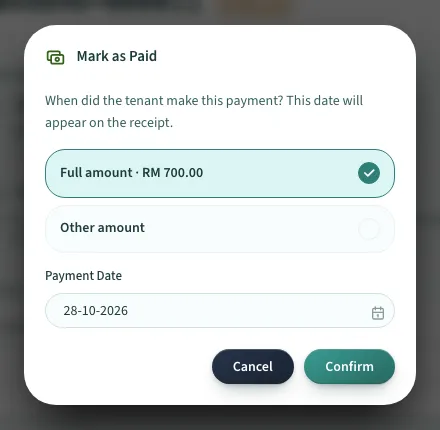
- Click Confirm.
- Refresh the page if the badge still says Partially paid.
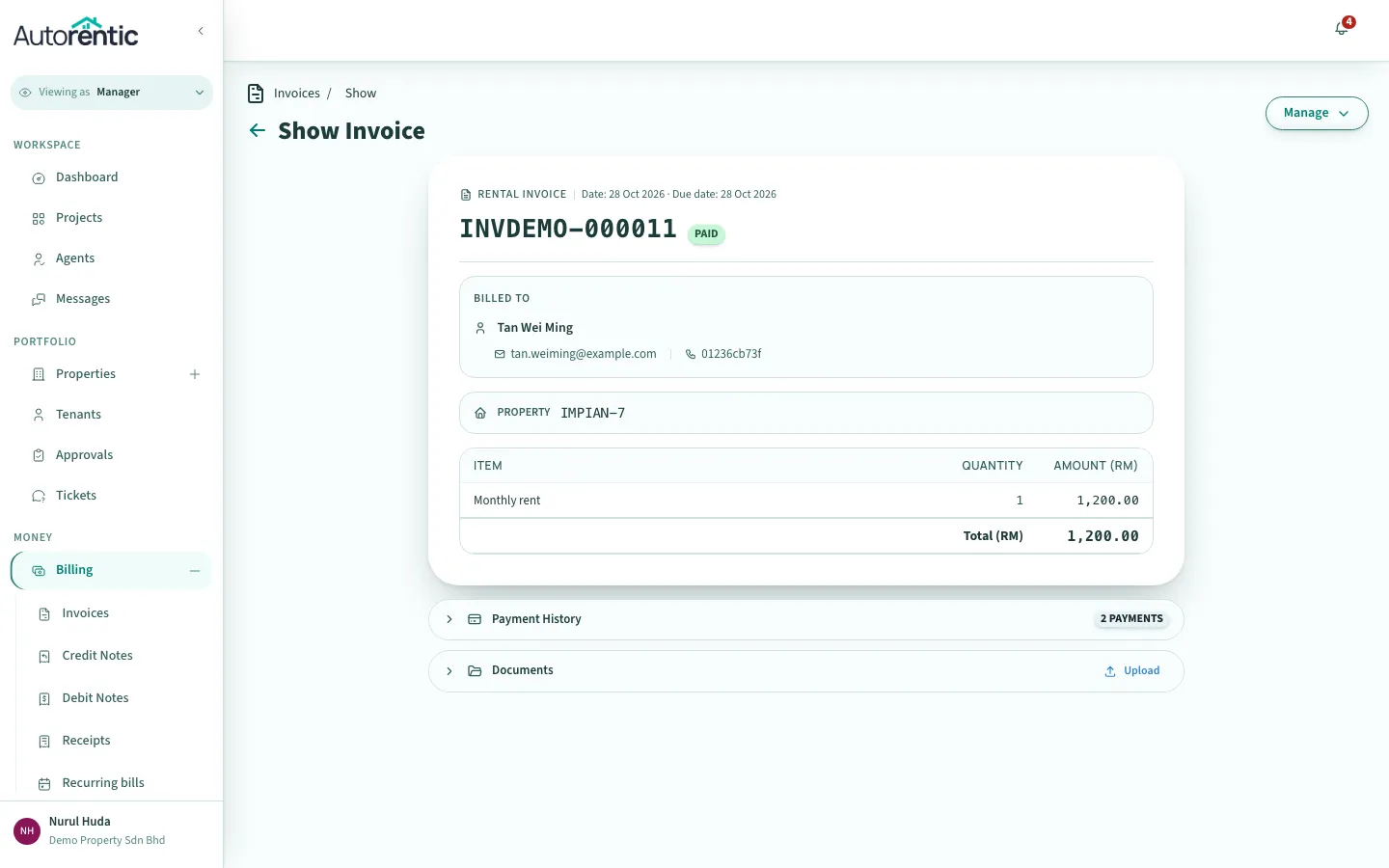
The invoice shows Paid. The Payment History section beneath it reads 2 payments.
Checking each payment
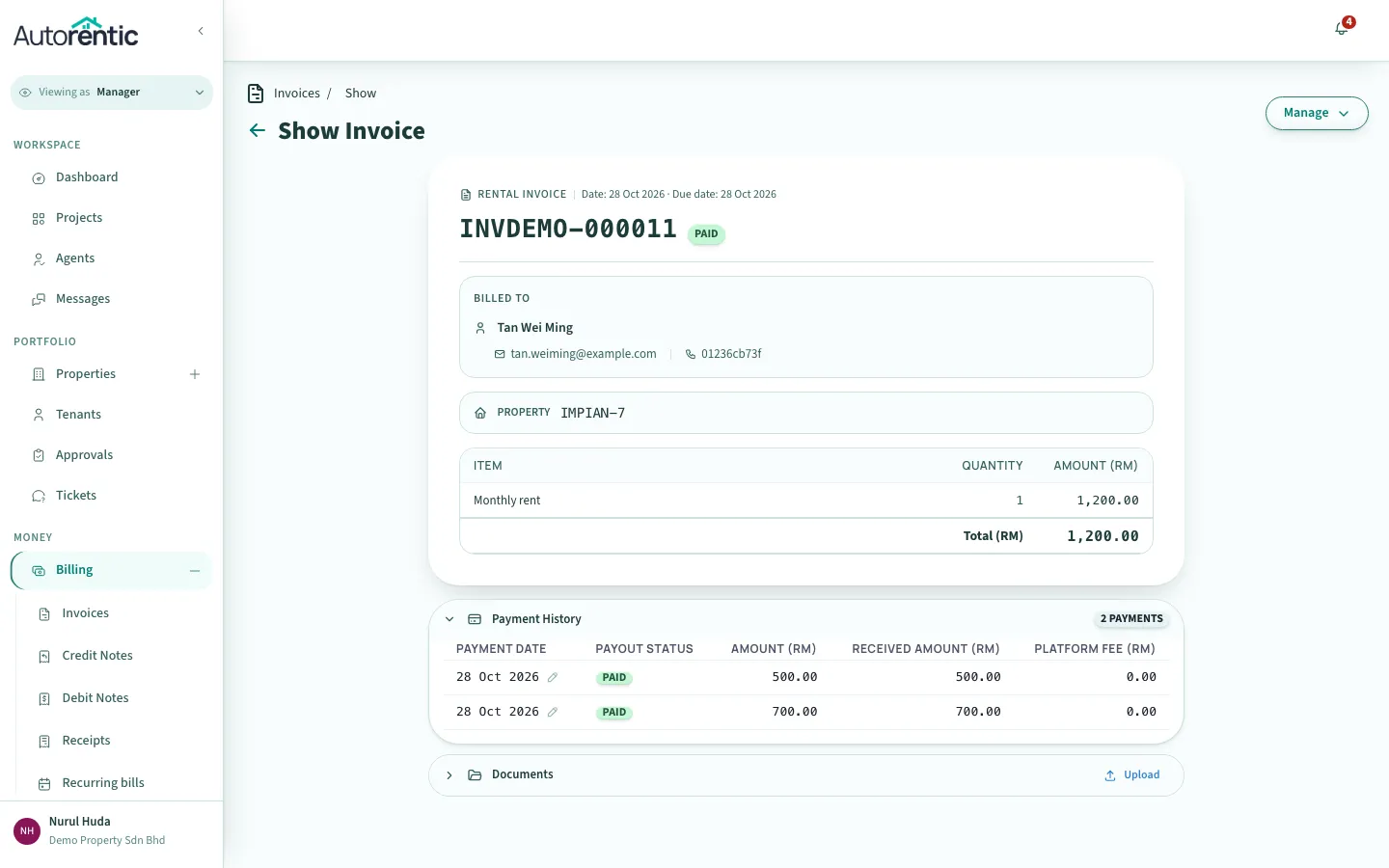
Section titled “Checking each payment”- Click Payment History to open it.
Each payment you recorded has its own row, with its date and amount.
Correcting the date of a payment
Section titled “Correcting the date of a payment”If you recorded a payment on the wrong date, you can change the date. Only the date can be changed.
- Click Payment History to open it.
- Click the pencil icon next to the payment date.
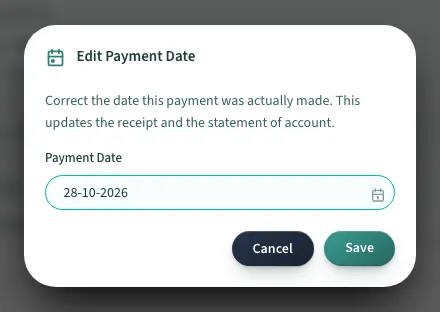
- Choose the correct date in Payment Date.
- Click Save.
The dialog says this updates the receipt and the statement of account, so both show the new date.
If the amount is wrong, the app does not let you change it or remove the payment. Do not record the same money again, because the invoice would show it twice. Email Autorentic at [email protected] with the invoice number and the correct amount before you make any other entry.
Finding the receipt
Section titled “Finding the receipt”Each payment creates a receipt. Click Billing under Money, then click Receipts.
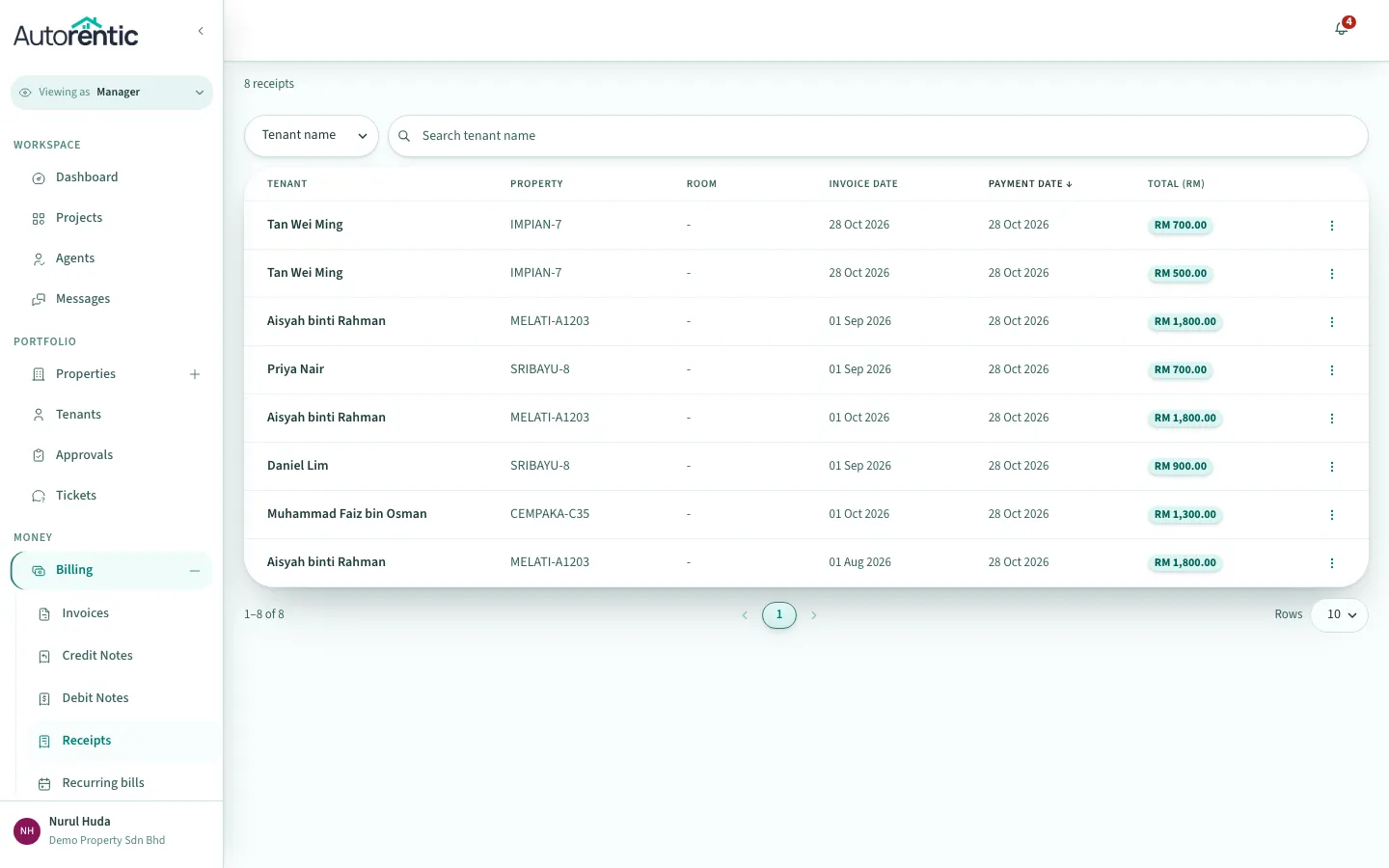
The list shows the tenant, the property, the invoice date, the payment date and the amount of each receipt. Two payments on one invoice give two receipts.
Checking the tenant’s statement of account
Section titled “Checking the tenant’s statement of account”The statement of account shows the balance a tenant owes, line by line.
- Click Finances under Money, then click Statements. If you see an upgrade prompt instead, statements are not on your plan.
- Find the row for the tenant’s property in the Property column.
- Click the eye icon in the Actions column of that row.
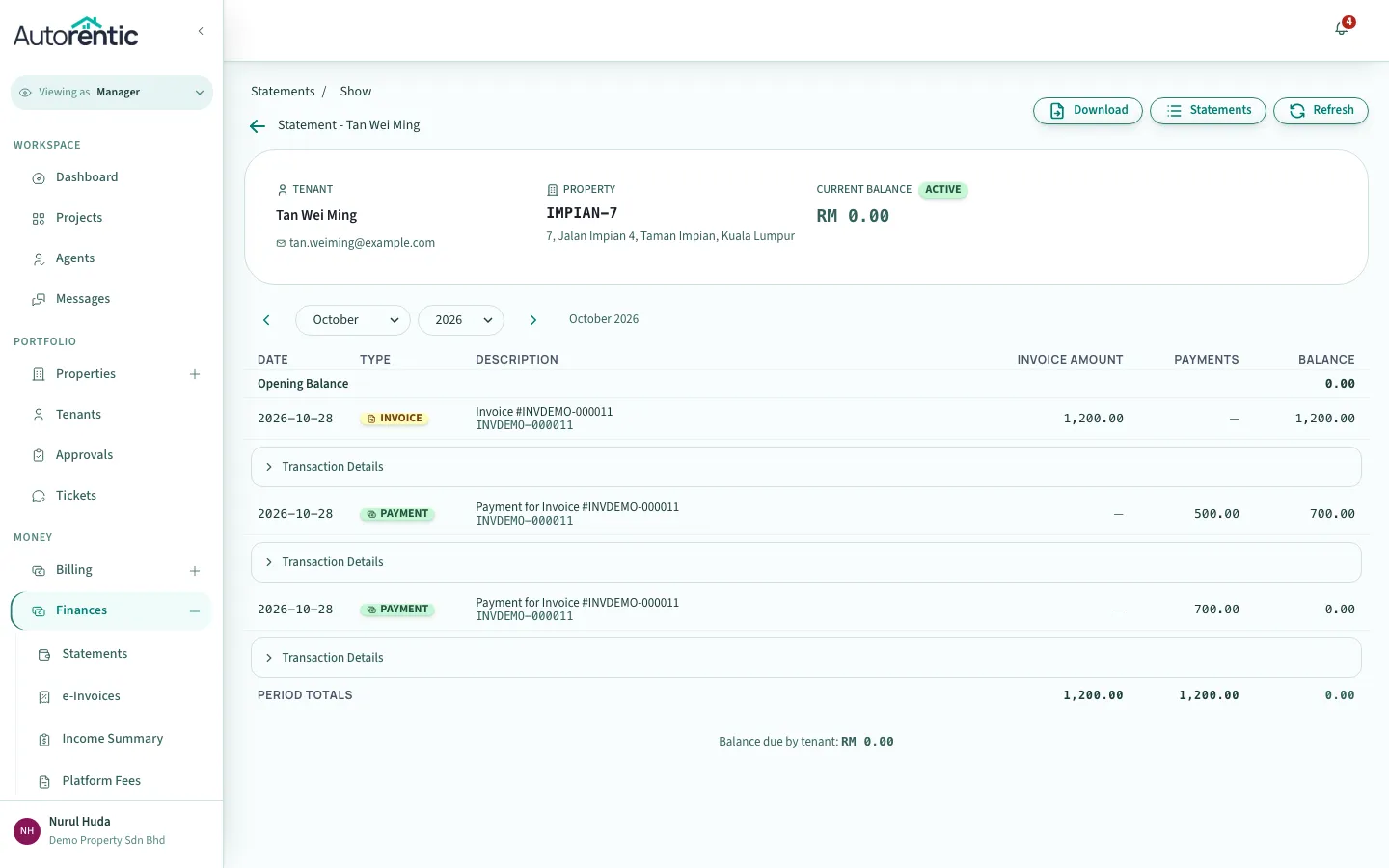
The statement opens with the Current Balance at the top. Below it, each invoice and payment is listed in date order, with a running Balance after each line.
What to do next
Section titled “What to do next”- If the Current Balance shows an amount, the tenant still owes that amount. Record the rest with Mark as Paid when the money arrives.
- If a payment appears twice, or with the wrong amount, read the section on correcting a payment above before you change anything.
- To see how rent is billed each month, read setting up monthly rent billing.
Ready to try it?
Go back to Autorentic and do it now, while the steps are fresh.