

Correcting or cancelling an invoice
Guide updated: Explains how Delete in the Manage menu differs from Cancel Invoice.See all changes to this guide
Use this guide when an invoice is wrong. There are four things you can do, and each one fits a different situation:
Prefer to watch first? This 35-second video shows the same screens, with no sound.
- Edit a draft invoice (the app also calls it a proforma) before you send it.
- Issue a credit note to reduce an invoice, for a refund, a discount or a mistake.
- Issue a debit note to add to an invoice, for an extra charge you forgot.
- Cancel an invoice, so it no longer counts as money the tenant owes. A cancelled invoice cannot be brought back.
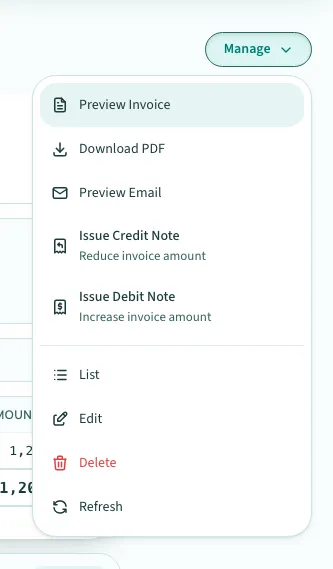
The Manage menu also has Delete, which is not one of these four. Delete takes the invoice off the invoice lists altogether, while a cancelled invoice stays in them marked Cancelled. A paid or part-paid invoice cannot be deleted.
Which of these you can use depends on the invoice’s state. The table below shows it.
Which action to use
Section titled “Which action to use”| The invoice is | Edit | Credit or debit note | Cancel Invoice |
|---|---|---|---|
| A draft invoice (proforma) | Yes | No. Finalize it first. | Yes |
| Unpaid | Yes | Yes | Yes |
| Partially paid | Yes | Yes | No |
| Paid | No | Yes | No |
| Submitted to MyInvois (LHDN) | No | Yes, as a local note or submitted to LHDN | No. Use Cancel MyInvois within 72 hours. |
A draft invoice has no invoice number yet, so it cannot have a credit or debit note. To make one, click Finalize Invoice first. Finalizing gives it an invoice number and turns it into a normal invoice.
On the screen, the actions sit under the Manage button at the top right of the invoice.
Editing a draft invoice
Section titled “Editing a draft invoice”Open a draft invoice before you send it to the tenant. You can also edit a finalized invoice while it is not fully paid and has not been submitted to MyInvois. Once it is paid or submitted, use a credit note or a debit note instead.
- Click Billing under Money, then click Invoices.
- Click the invoice number of the draft invoice. The page says Proforma Invoice.
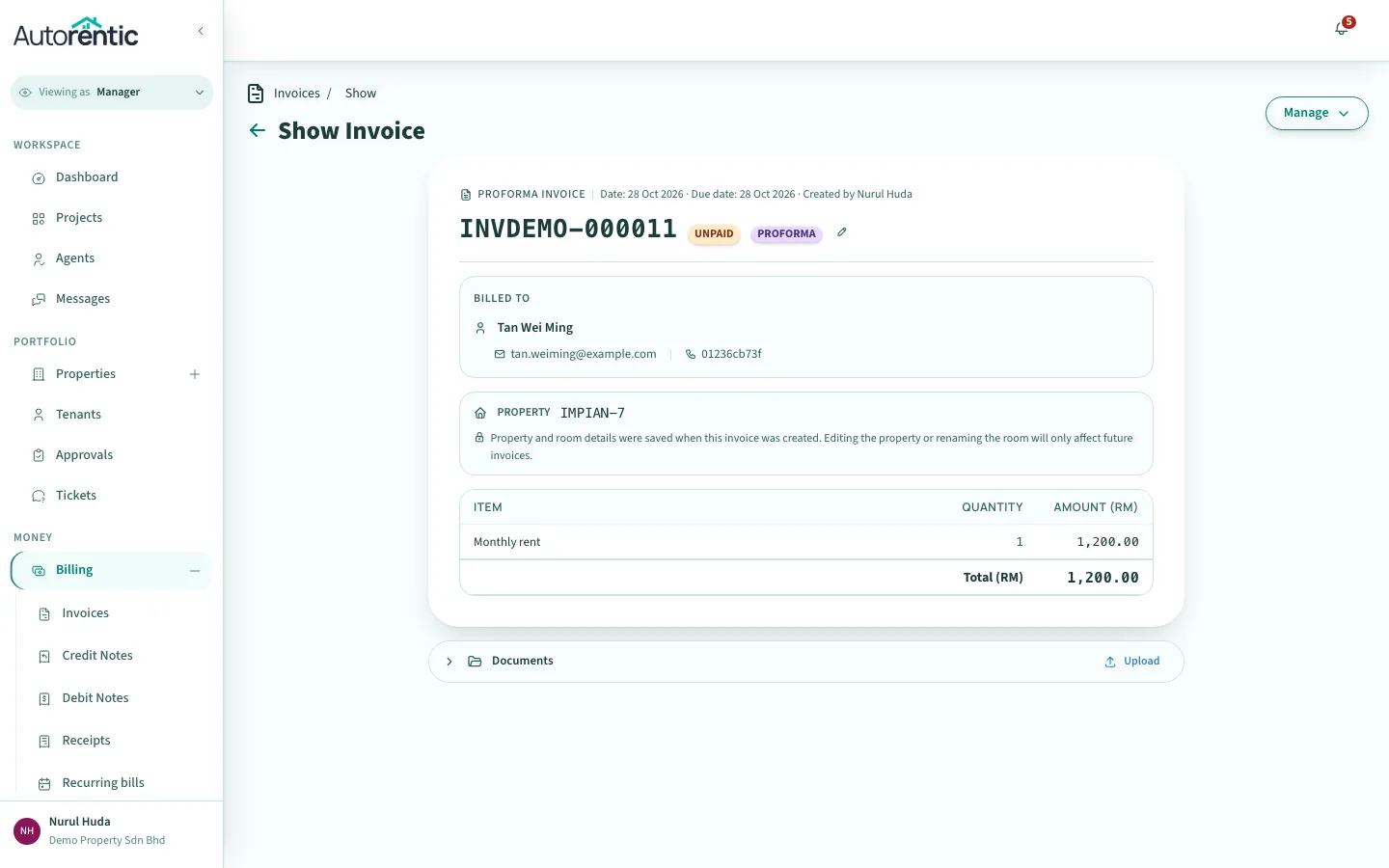
- Click Manage.
- Click Edit.
- Change what is wrong, then click Save.
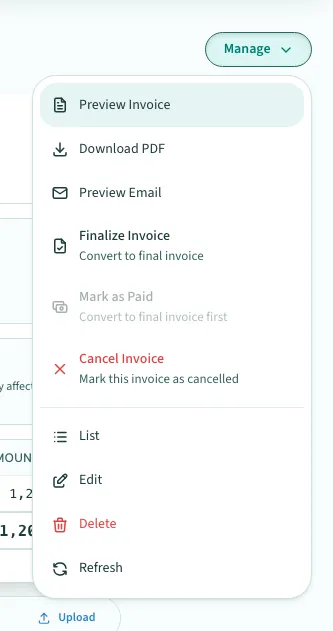
The Manage menu for a draft shows Finalize Invoice and Cancel Invoice. Mark as Paid is greyed out until you finalize it.
Issuing a credit note
Section titled “Issuing a credit note”A credit note reduces the amount on an invoice. Use it for a refund, a discount, or a mistake that charged the tenant too much. The invoice in this example is an unpaid rent invoice of RM 1,200.00.
- Open the invoice. Click Billing under Money, click Invoices, then click the invoice number.
- Click Manage.
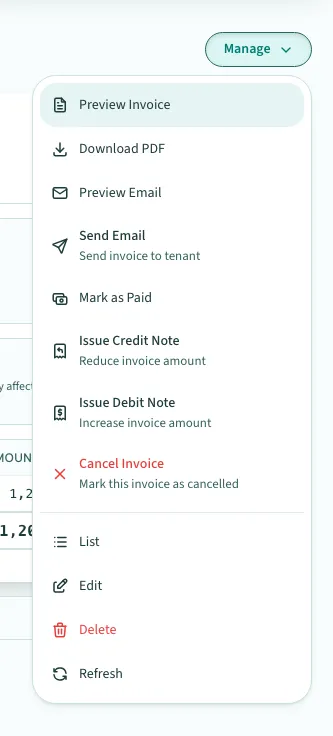
- Click Issue Credit Note.
- Click Reason for Adjustment, then choose the reason, for example Refund.
- Type what the note is for in Description.
- Type the amount in Amount (RM).
Under the amount, Grand Total shows the amount of the credit note. Check it before you continue. If the note has more than one part, click Add Item for each extra line.
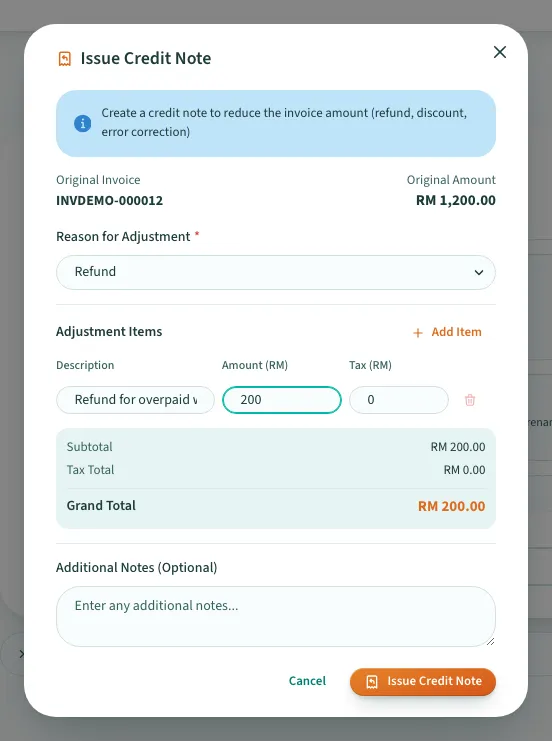
- Click Issue Credit Note at the bottom of the box.
The box closes. The note is listed under Billing, then Credit Notes.
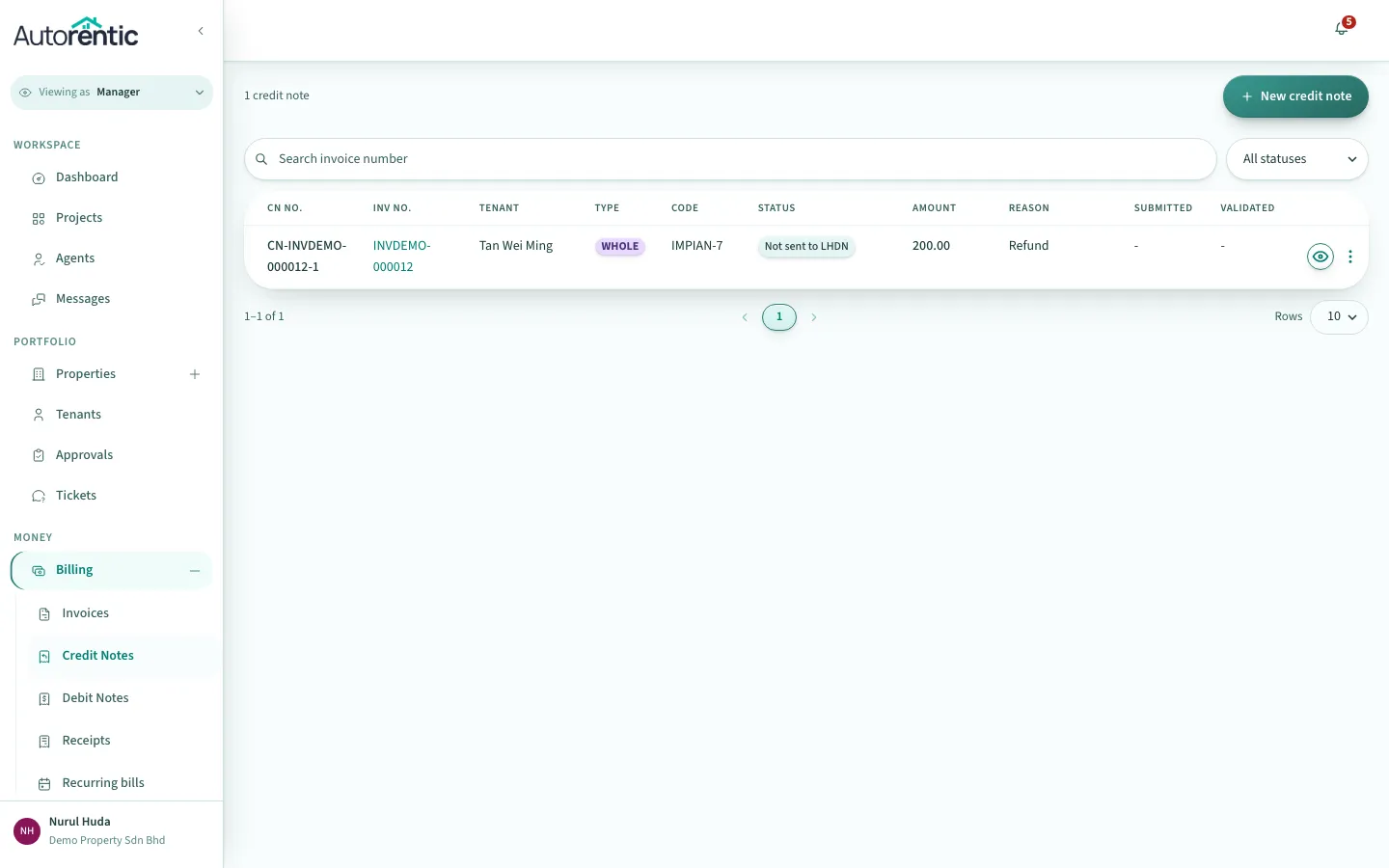
The note is recorded on the tenant’s statement of account straight away. Autorentic does not email the note to the tenant when you issue it.
Issuing a debit note
Section titled “Issuing a debit note”A debit note adds to the amount on an invoice. Use it for an extra charge that was left off, or a late fee.
- Open the invoice and click Manage, as in the steps above.
- Click Issue Debit Note.
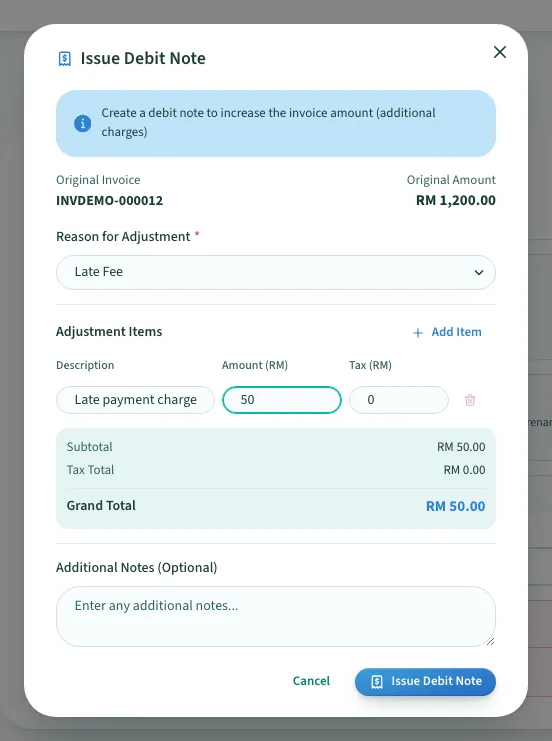
- Click Reason for Adjustment, then choose the reason, for example Late Fee.
- Type what the note is for in Description.
- Type the amount in Amount (RM). Check the Grand Total under it.
- Click Issue Debit Note at the bottom of the box.
The note is listed under Billing, then Debit Notes.
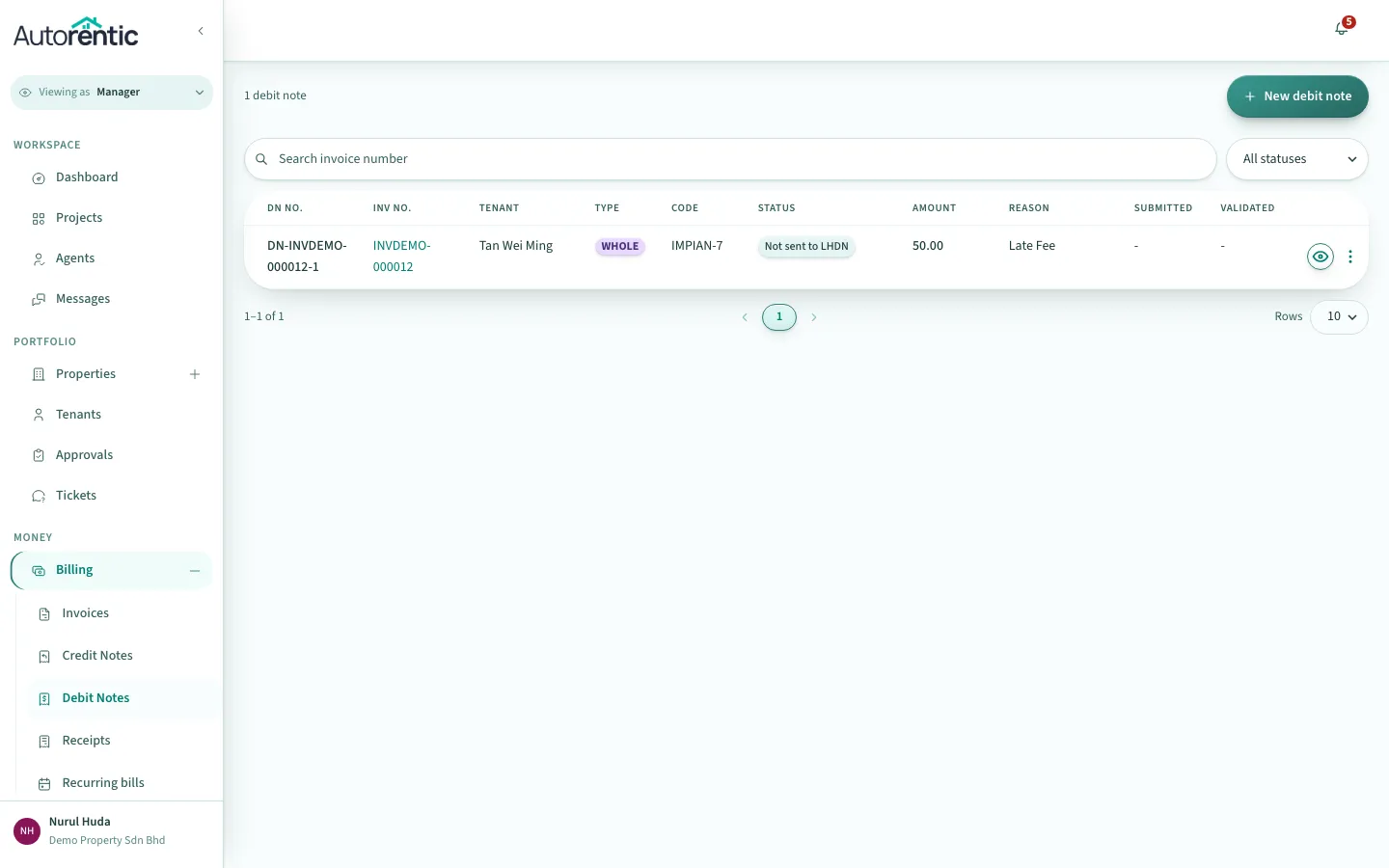
If the invoice is already paid, a debit note creates a new invoice for the extra amount, so you can collect it. The message after you issue the note says which invoice was created.
Cancelling an invoice
Section titled “Cancelling an invoice”Cancel an invoice when it should not have been raised at all, for example a duplicate. Cancelling takes the amount off what the tenant owes. The tenant’s statement of account shows a reversing line for it.
- Open the invoice and click Manage.
- Click Cancel Invoice.
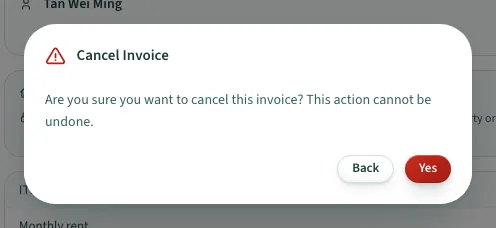
- Click Yes to cancel the invoice. To keep it, click Back.
The invoice shows the Cancelled badge.
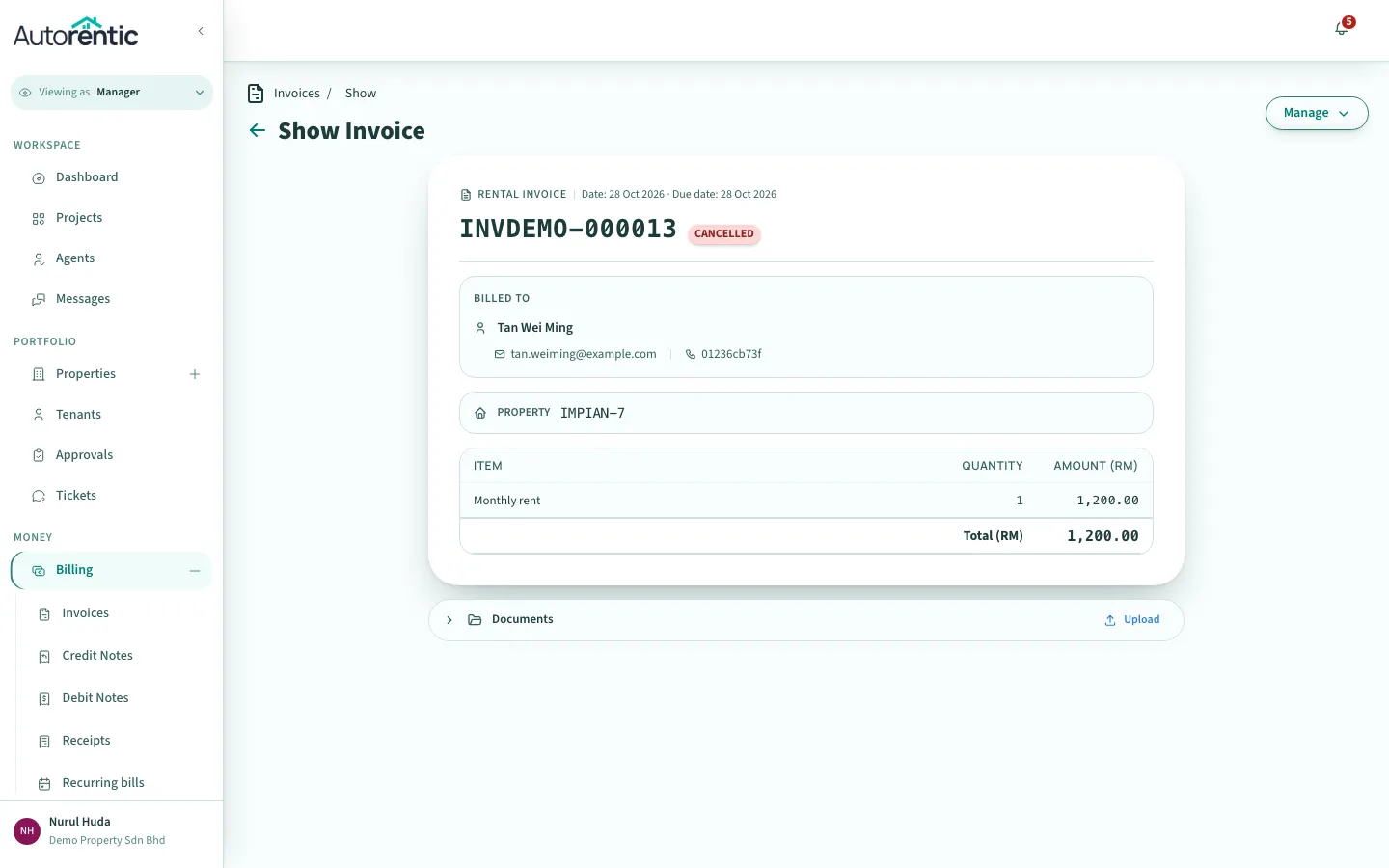
A cancelled invoice cannot be undone. Autorentic has no button that brings it back. If the tenant still needs to pay, create a new invoice for the correct amount.
When you cannot cancel an invoice
Section titled “When you cannot cancel an invoice”- A paid invoice has no Cancel Invoice item. To correct it, issue a credit note, and record a refund if you pay the money back.
- A partially paid invoice cannot be cancelled. Autorentic shows the message “A part is paid. Issue a credit note and refund instead.” Issue a credit note for what should not be charged, then record the money you return.
Refunding a credit note on a paid invoice
Section titled “Refunding a credit note on a paid invoice”When a credit note is for an invoice that is already paid, you can record the refund you paid back to the tenant.
- Click Billing under Money, then click Credit Notes.
- Click the eye icon on the row for the note.
- In the Refund section, click Record Refund.
The section shows how much of the credit note is still owed to the tenant.
Invoices submitted to MyInvois (LHDN)
Section titled “Invoices submitted to MyInvois (LHDN)”When an invoice has been submitted to MyInvois, Autorentic locks it. You cannot edit it or cancel it the normal way.
- Issue a credit or debit note from the same Manage menu. The labels end in (Local) when the note is kept only in Autorentic. The menu also offers Submit Credit Note to LHDN and Submit Debit Note to LHDN.
- Cancel MyInvois is available for 72 hours after the invoice was submitted. Autorentic asks for a reason, then asks which you want: Cancel MyInvois Only keeps the invoice active, and you can submit it again. Cancel Invoice Completely cancels both the MyInvois submission and the invoice.
- You cannot cancel an invoice while a credit or debit note for it is still submitted to MyInvois.
What to do next
Section titled “What to do next”- If the tenant still owes money after a credit or debit note, the Current Balance on the statement of account shows the amount. Read recording a cash or bank-transfer payment to record what they pay.
- If you cancelled an invoice by mistake, you cannot undo it. Create a new invoice for the correct amount.
- If an invoice has been submitted to MyInvois and you need to change its amount, use a credit note or a debit note.
What changed in this guide
- Explains how Delete in the Manage menu differs from Cancel Invoice.
- First published.
Ready to try it?
Go back to Autorentic and do it now, while the steps are fresh.